
When building topics in Copilot Studio, capturing user input accurately is essential and free-text responses can lead to inconsistent data. For example, you might have a topic that allows users to submit a support request. The topic may have a question for the user to pick an issue category or set a priority for a support ticket. Choice variables solve this by presenting predefined options, such as Low, Medium, or High priority, which keeps data structured and predictable. However, if you try to use a choice variable directly in an agent flow, you can encounter an error: Input variable is of incorrect type: ClosedListOptionSet.

Let’s see why that happens and a fix so you can use choice variables in your flows.
Why the error happens
Choice variables are stored as a special data type in Copilot Studio. When you pass them into an agent flow, the flow expects a text value, not the choice object. If you try to use the choice variable as-is, the flow cannot interpret it, which causes the error.
The Fix: Convert the choice variable to text
To resolve this, you need to convert the choice variable into text when passing it to the flow. This is done using a formula in your topic.
Steps to apply the fix
1. Create your Choice Entity
In your topic, define the choice options you want users to select from. You might ask a question that uses a custom entity or multiple choice options.
Let’s say we create a question for users to pick their issue priority. It uses a custom entity with the values:
- Low
- Medium
- High
Add the Question to your topic. The variable will automatically be stored as the choice type.

2. Prepare the Agent Flow
In your agent flow, add an input in the flow’s trigger When an agent calls the flow for the value you want to pass from the topic. This should be a text input. Then, continue building out your flow.
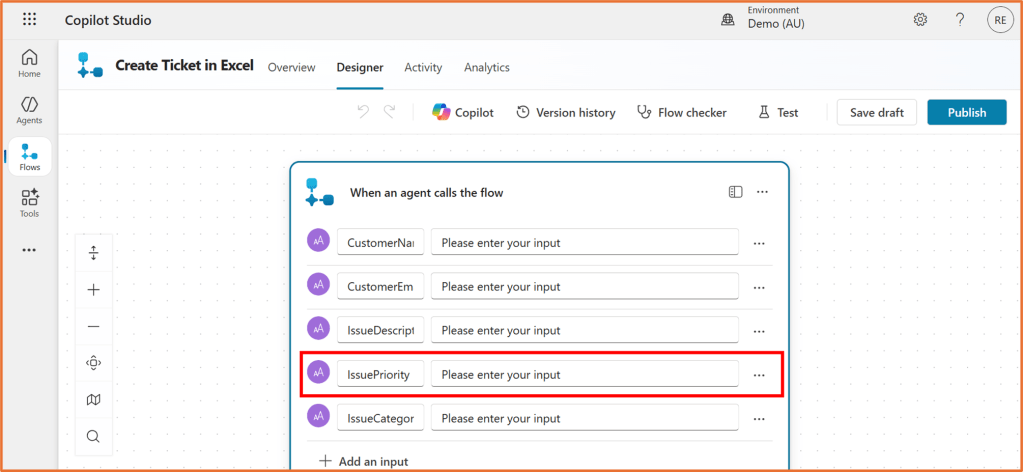
3. Convert the choice variable
Once you build the flow, you need to add it to your topic and link the variables to the flow inputs. In your topic, add the Agent flow node and select your flow.
For the input that is the choice variable (IssuePriority in this example), click on …

Select the Formula tab and enter a formula in the format of: Text(variable name)
For example: Text(Topic.IssuePriority)
Replace Topic.IssuePriority with the name of your choice variable. Click Insert.


To find your variable name, use the suggestions that appear when typing your formula. A Topic scope variable will begin with Topic. and a Global scope variable will begin System.


 Rishona Elijah