
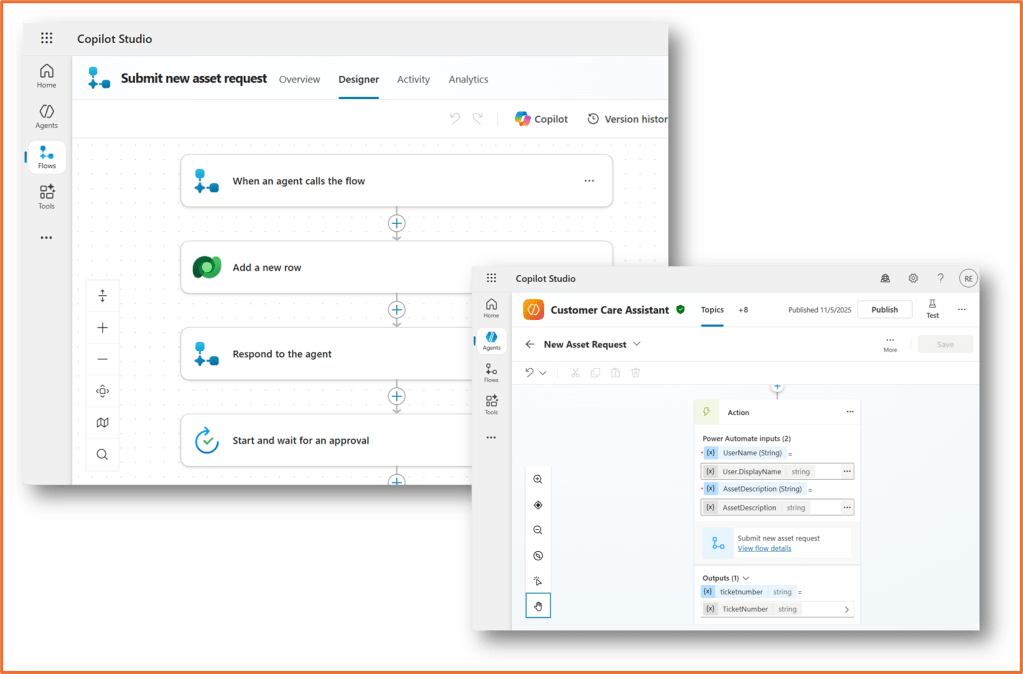
When you build an agent in Copilot Studio, answering questions is just the beginning. To make your agent truly useful, you can add automations that perform tasks for the user. These automations are powered by agent flows, which connect your agent to Power Automate. In this post, we’ll explore what agent flows are, why you should use them, and how to run them from a topic.
What is an agent flow?
An agent flow is a Power Automate flow designed to work with Copilot Studio agents. It allows your agent to trigger actions in other systems, such as creating a record, sending an email, or updating a database. This connection to Power Automate means you can integrate your agent with hundreds of services using connectors. Some examples include:
- Logging a support ticket in Dynamics 365 or Dataverse
- Creating a new row in an Excel file
- Sending a confirmation email after a process is complete
Running from a topic vs from agent instructions
There are two ways to trigger an automation:
1. From a topic
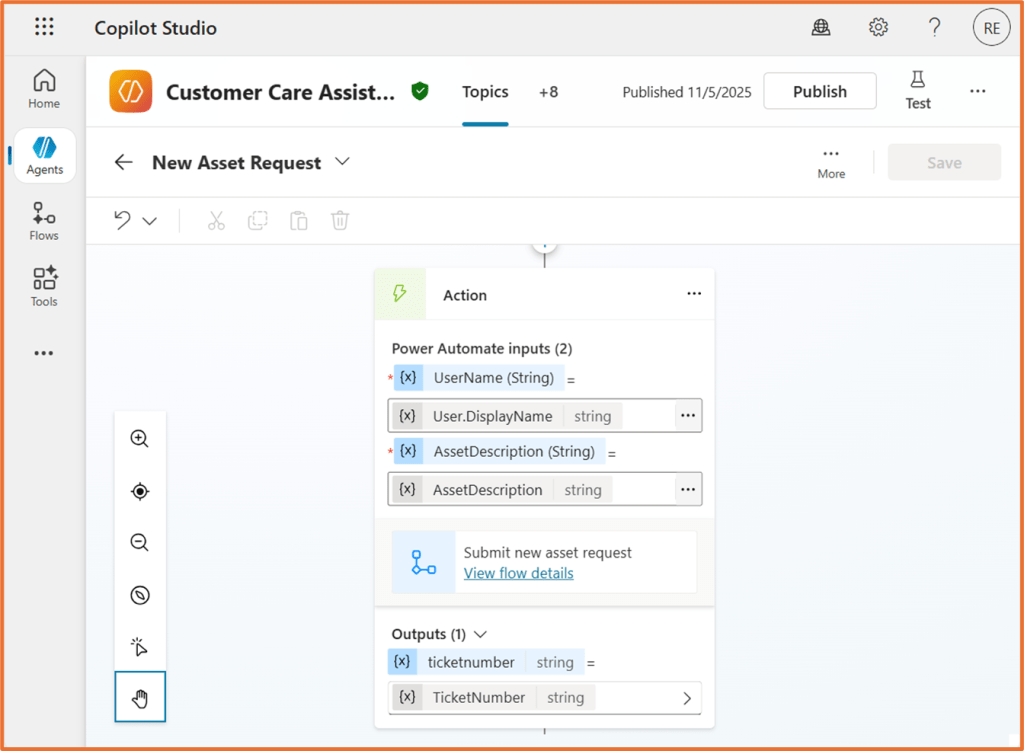
The automation runs as part of a specific conversation flow. Use this when the action is tied to a particular scenario. For example, if a user says, “I need to request a device,” the topic for requesting a device can call the automation directly.
2. From agent instructions
The automation is available globally, so the agent can use it whenever relevant. This is useful for actions that apply across multiple topics, such as sending an email or updating a record.
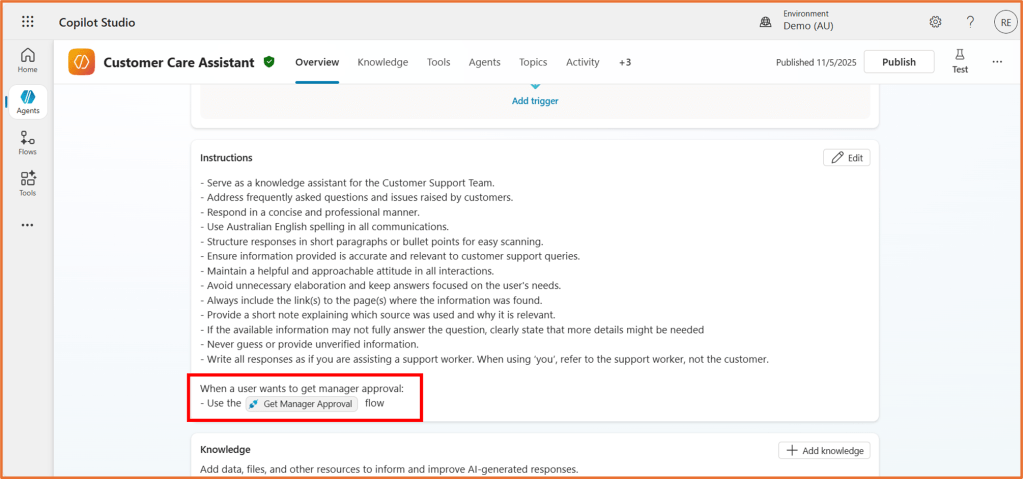
See here for how to add an agent flow to your instructions. (Coming Soon)
To summarise, use topics for structured processes or when the automation depends on information gathered in that topic. Use agent instructions for actions that should be accessible in multiple contexts.
How to add the flow to your topic
First, build the agent flow. Here is an example of an agent flow you can try to build: Copilot Studio: Build an agent flow that can read and write to Excel – Rishona Elijah. To run an automation from a topic, you use the Action node in Copilot Studio.
1. Open your topic in Copilot Studio.
2. Add a new node to the conversation, in the stage of the conversation where the flow should run (e.g. once key questions have been asked) .
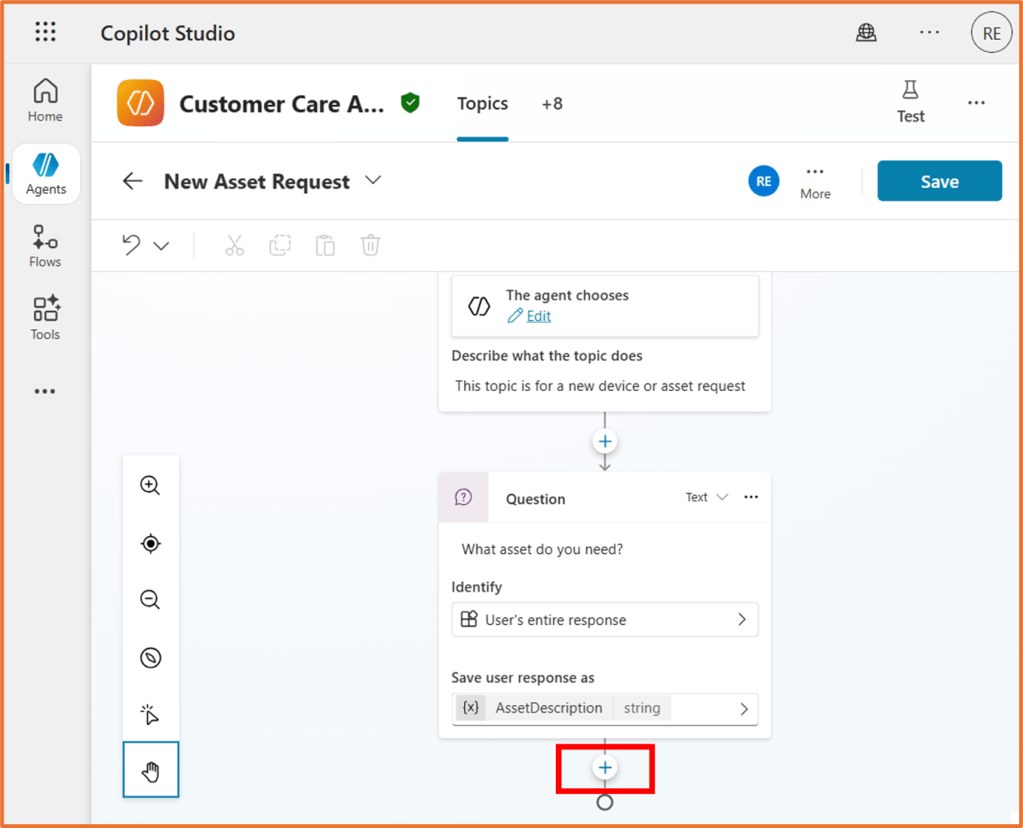
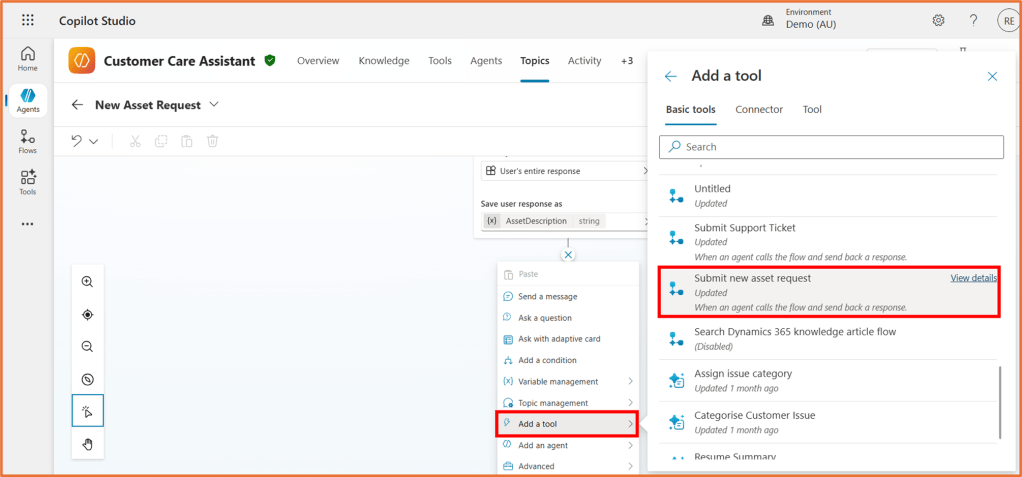
3. Select Add a tool and select your agent flow from the list. Create a new agent flow if you have not built it yet.
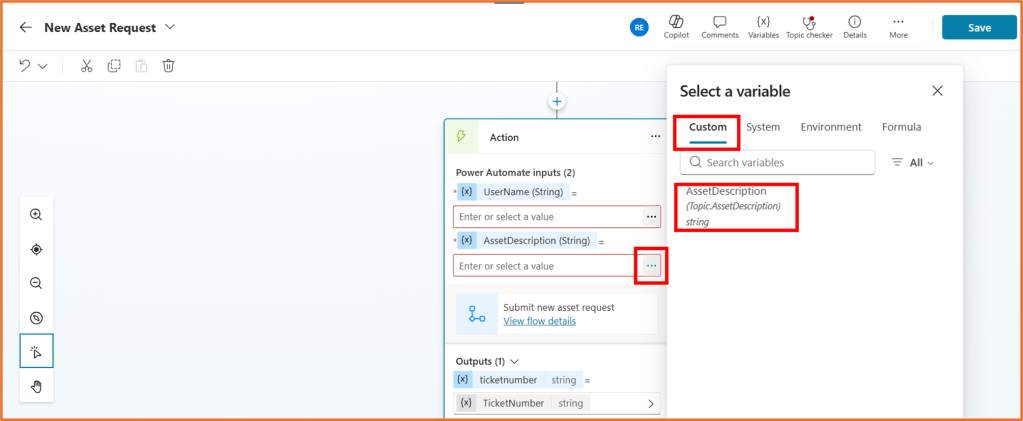
4. Map the topic variables to the flow inputs. Click on … next to the input. This will allow you to search for the variable. Custom refers to any variable you manually created from conversations with the agent.
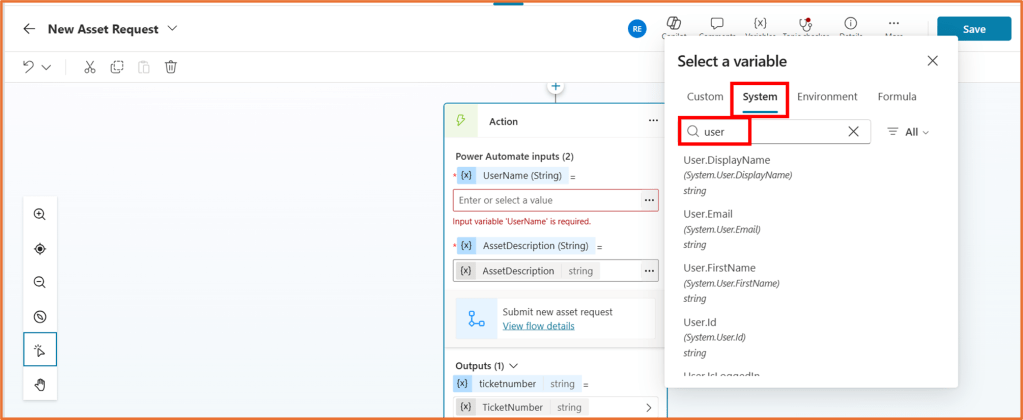
To find variables relating to the logged in user, click on the System tab and search for User. You will find variables such as the user’s email and display name.
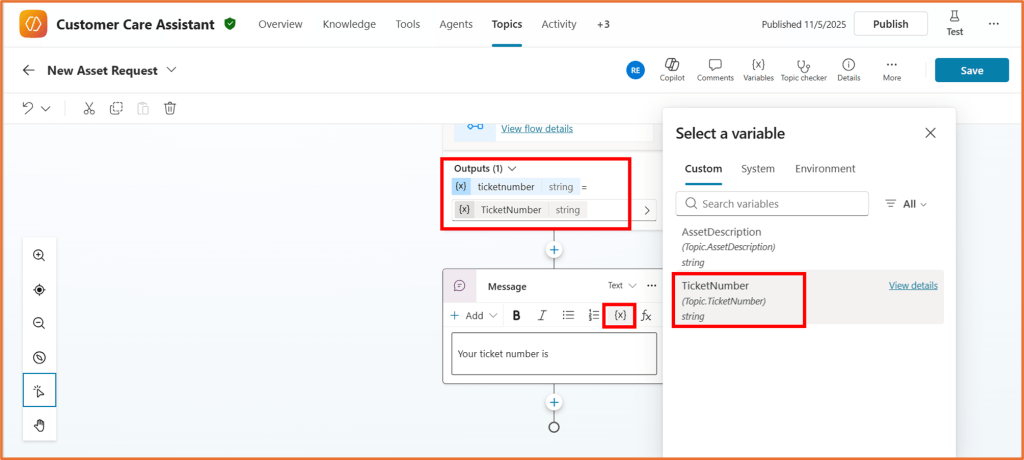
5. Your agent flow is now connected to your topic. Save your topic. Any outputs from your flow will be available to use throughout the conversation by clicking the {x} symbol in a node.

 Rishona Elijah
3 thoughts on “Run automations from an agent topic in Copilot Studio”