
If you are building an agent for employees to use in M365 Copilot, Microsoft Teams, Power Apps or SharePoint, they are already authenticated while signed in with their Microsoft Entra ID. That means the agent readily has access a set of built-in variables about the signed-in user. You do not need the agent to ask “What is your name?” or “What is your email?” because the agent you build in Copilot Studio already knows. Let’s see where to find those variables, what each one means, and how to reference them in your agent instructions and topics.
Where to find the user variables
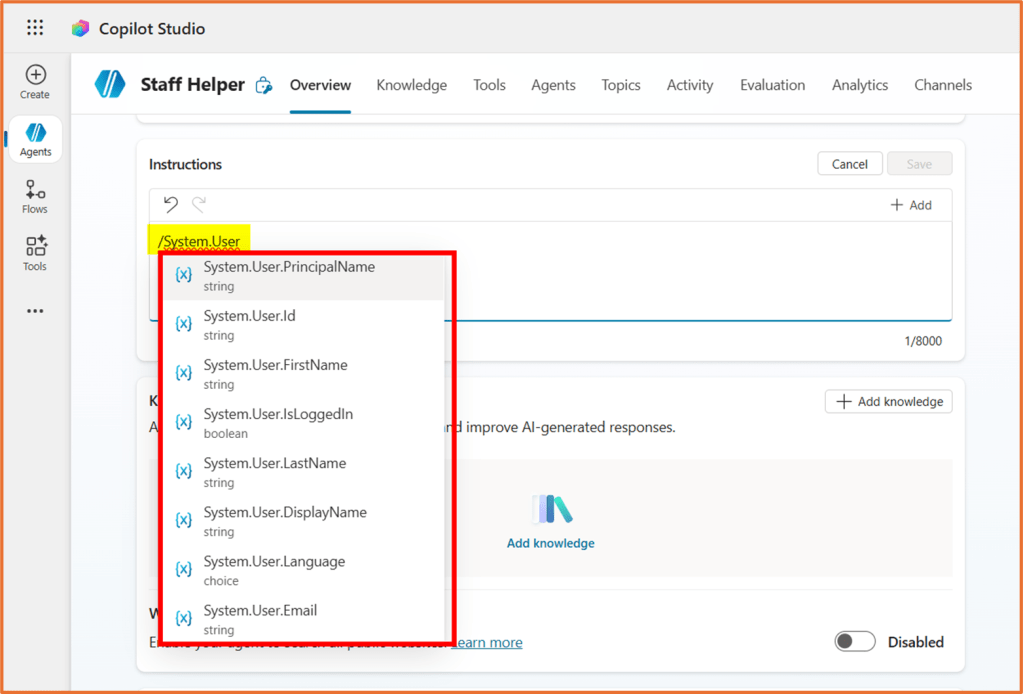
Open your agent in Copilot Studio and go to Overview > Instructions. Open the variable picker by typing the / key.
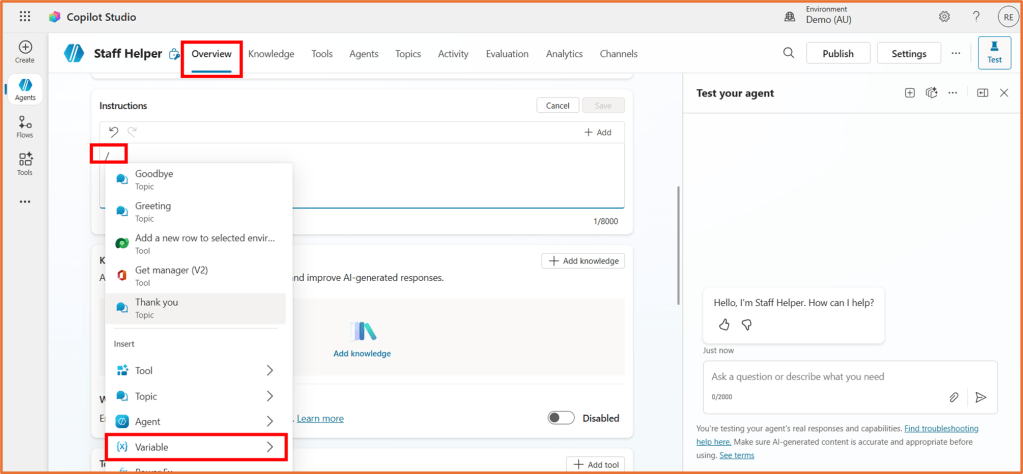
You will find a set of System variables beginning with System.User. The screenshot below shows what this looks like. You may need to start typing System.User to see the results.
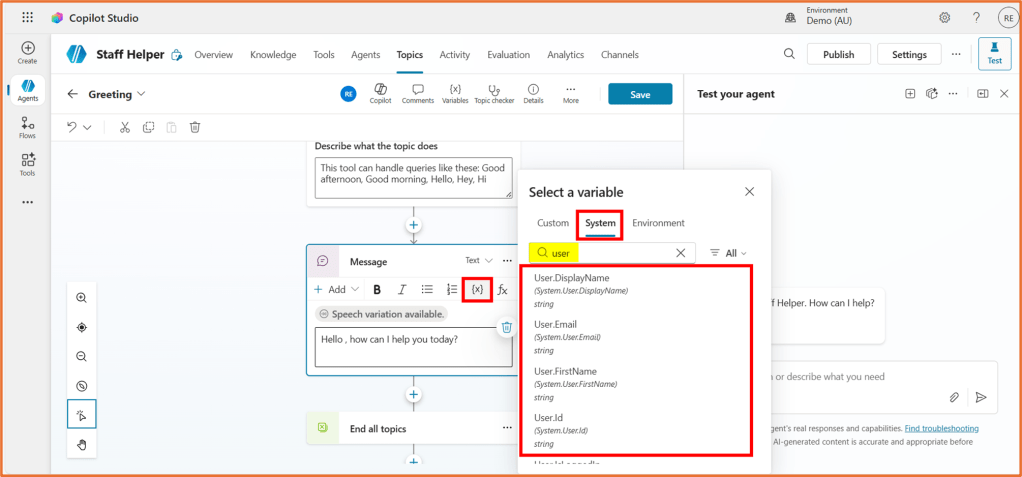
You can also find these variables within a topic. Open your topic and insert a variable. Search for User in the System tab to find them.
What does each variable return?
Below is a list of the user variables for internal agents. These values are populated from the user’s Microsoft Entra ID when they are signed in via supported channels. Because identity is already handled by the channel, you can personalise responses, route requests, and avoid asking basic identity questions.
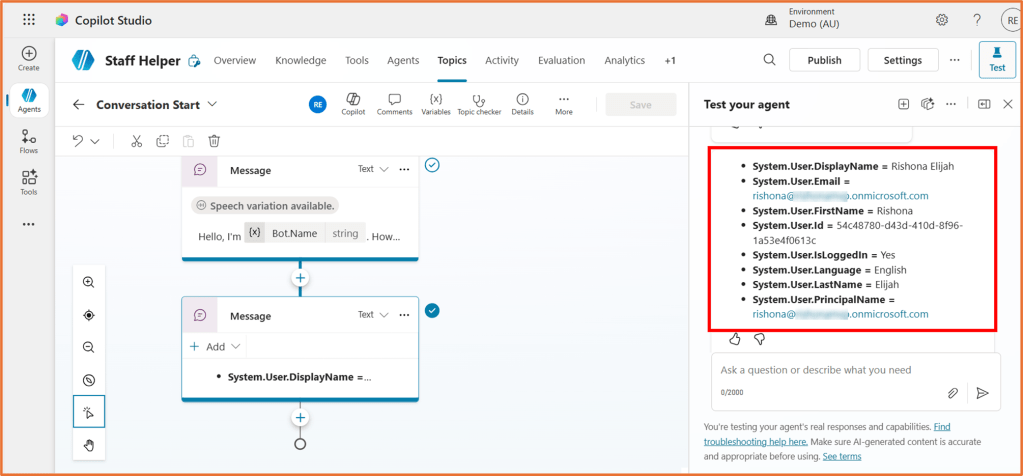
System.User.DisplayName : The friendly name commonly shown in Microsoft 365 apps.
Sample value: Rishona Elijah
System.User.Email : The user’s primary email address. In many tenants this is the same as the principal name, but it can differ.
Sample value: rishona@email.com
System.User.FirstName : The user’s given name.
Sample value: Rishona
System.User.Id : The unique identifier for the user in Microsoft Entra ID.
Sample value: 54c48780-d43d-410d-8f96-1a53e4f0613c
System.User.IsLoggedIn : A boolean that tells you if the current user is authenticated in the channel. Use this to branch your logic.
Sample value: Yes
System.User.Language : The user’s language preference that Copilot Studio can use for localisation.
Sample value: English
System.User.LastName : The user’s surname.
Sample value: Elijah
System.User.PrincipalName : The user principal name, typically in email format.
Sample value: rishona@email.com
Personalising agent reponses with user variables
The variables can be added directly in your agent’s instructions or topics. Below are a few examples of how the variables can be used.
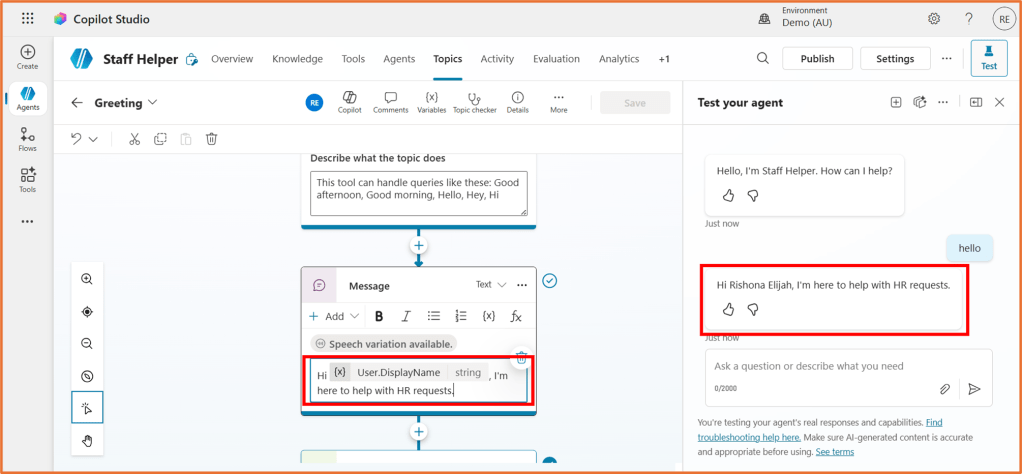
Personalise the agent’s tone with the user’s name
Welcome message: “Hi {{System.User.DisplayName}}, I’m here to help with HR requests.”
Localise by the user’s language
Agent instruction: “Respond in {{System.User.Language}} when possible.”
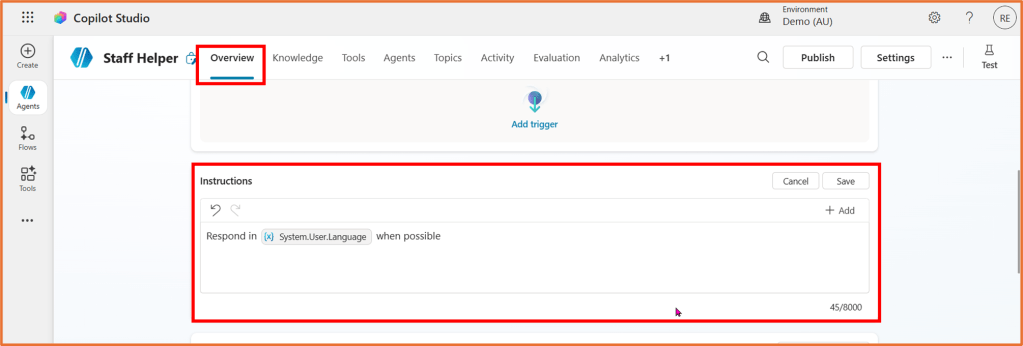
For the language to work, check that the additional languages are added to your agent via Settings area.
Do you need more personalisation options in your conversations, such as the user’s country, birthday, manager, office location, or more? Try the Office 365 connector tool (blog post coming soon).

 Rishona Elijah