
When teams create content every day, one of the biggest slowdowns can be inconsistency. One person writes in a formal tone, another writes casually, and someone else includes wording that needs to be changed before it can be approved. That’s the kind of repeatable work where an agent can help.
In this post, I will show you how to build an agent that follows your communication guidelines. You can give your agent a clear set of instructions and knowledge sources to work from. The result is faster first drafts and more consistent communication.
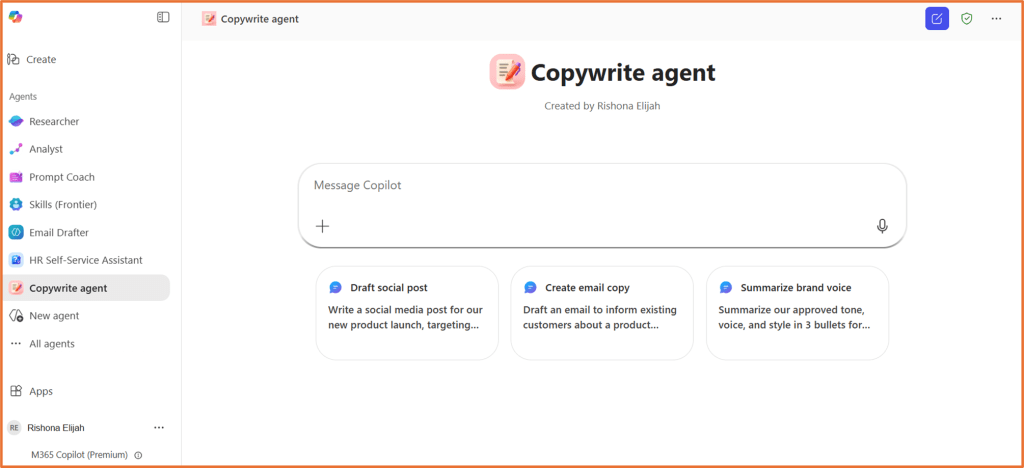
A good example is a Copywrite agent that creates first draft content for different channels. In this scenario, the agent is designed to create consistent customer facing copy across email, web, and social, using a brand voice and style guide, approved product facts, and past approved examples.
But the same concept works just as well for internal communication guidelines too. For example, you might have a written communication guide that explains:
- Preferred tone
- Words and phrases to use
- Words and phrases to avoid
- Formatting conventions
- How to write for different audiences
- How to structure announcements, updates, or customer messages
You are still asking a human to review the final content, but the agent can take care of the first draft work.
Knowledge Sources
Three knowledge sources will be used in this example:
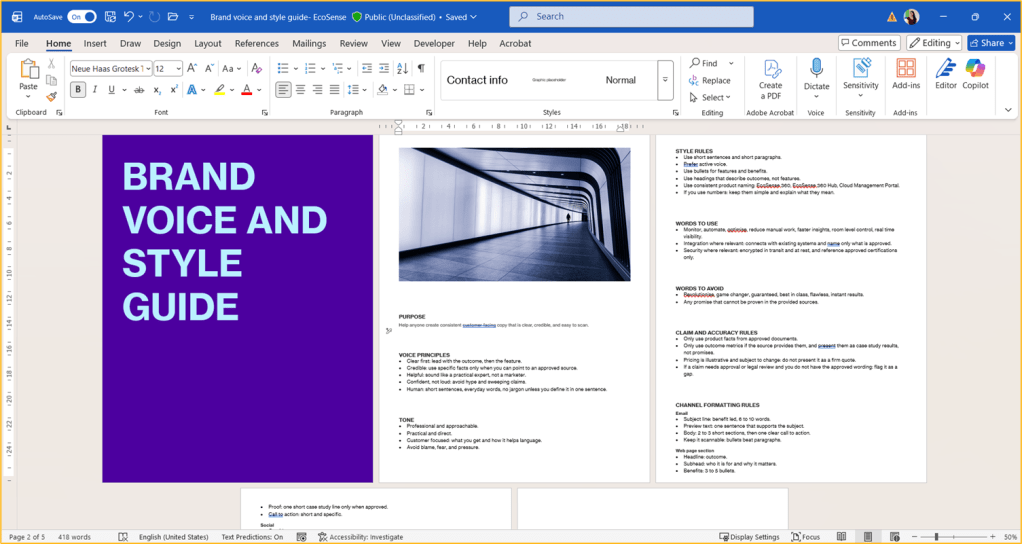
- Brand voice and style guide: Word document
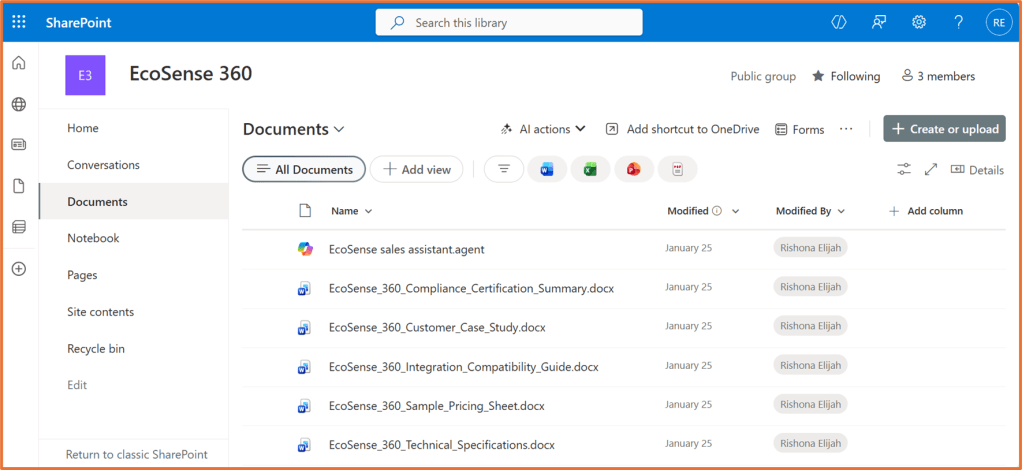
- Approved product facts and specs sheets: Documents stored in SharePoint site
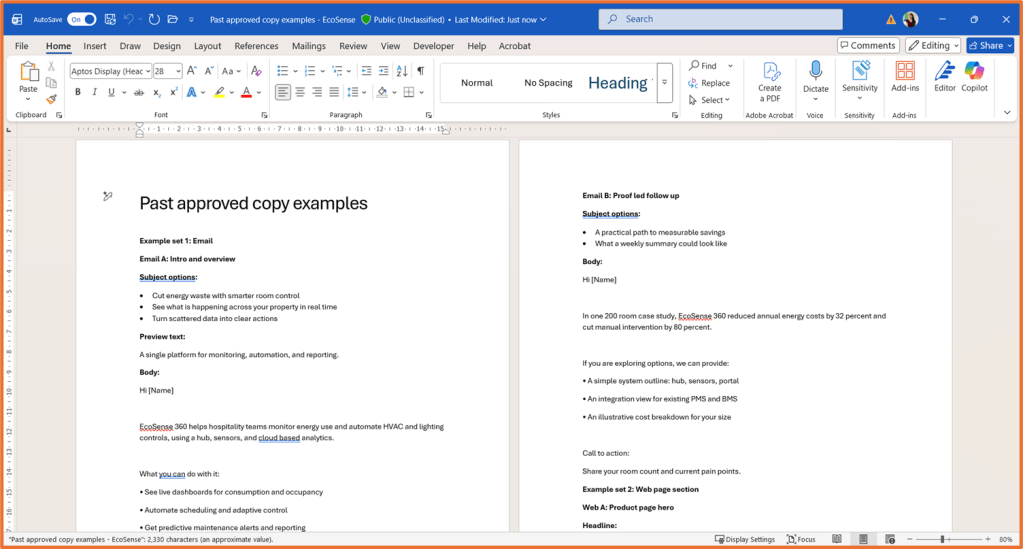
- Past approved copy examples: Word document
Step 1: Create the agent
Open Copilot Chat in a new browser tab/window. Under Agents, select New agent. Make sure you are in the Configure tab. Alternatively, you can set up the agent in Copilot Studio.
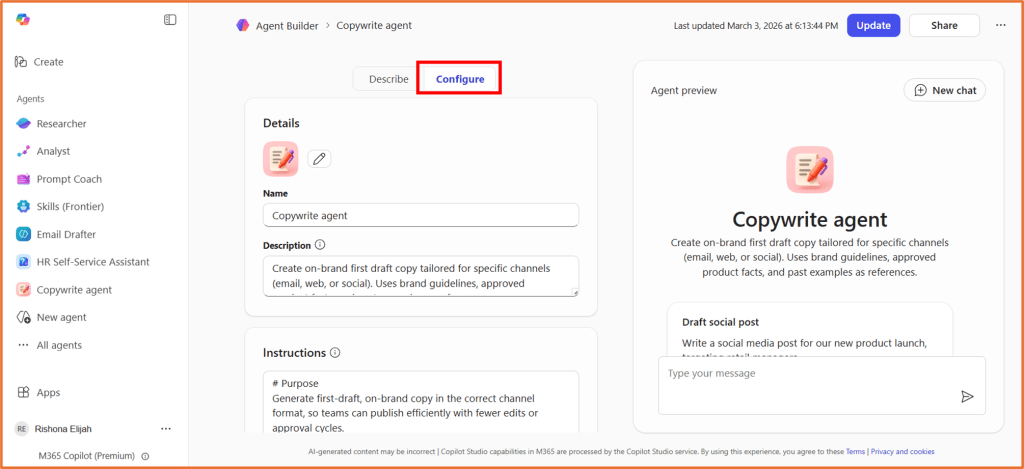
Step 2: Enter the configuration details
Name:
Copywrite agent
Description:
Create on-brand first draft copy tailored for specific channels (email, web, or social). Uses brand guidelines, approved product facts, and past examples as references.
Instructions
The instructions are set up so that the agent will ask the user clarifying questions if it is unsure of details, as well as identify any gaps or risks with the draft. Below are sample instructions you could use.
# PurposeGenerate first-draft, on-brand copy in the correct channel format, so teams can publish efficiently with fewer edits or approval cycles.# Guidelines- Use only approved information from brand voice/style guidelines, product facts/specs, and past approved copy examples.- Match the tone and style outlined in the brand documents.- Confirm all key details (channel, audience, goal, CTA) with the user. If any are missing, ask clarifying questions.- Format the draft appropriately for email, web, or social channels as specified.- Flag any information gaps or unsubstantiated claims clearly.# Skills- Interpret requests and determine if any required inputs are missing.- Extract and adapt facts from provided reference materials.- Write concise, compelling draft copy that fits the chosen channel.- Summarize potential risks or missing details in a dedicated section.# Process1. On receiving a new request, identify and confirm the channel, audience, goal, and CTA. If any input is missing, ask the user for specifics before drafting.2. Locate relevant facts in the reference materials. Use only approved or verified information.3. Write a quick brief with two bullets summarizing (a) channel and goal, and (b) the key message or takeaway.4. Draft the copy, matching format and expectations for the specified channel (e.g., subject line and body for emails, character limit for social, scannable web sections).5. Create a "Gaps and risks" section, up to five bullets, listing missing information, ambiguous details, or risky claims.6. Present results as: - Quick brief - Draft copy - Gaps and risks# Interaction Examples## Example 1**User**: Write a LinkedIn post promoting our new product for healthcare buyers.**Agent**: What is the main goal of the post, and what action should readers take next?## Example 2**User**: Need email copy for our product update to customers. CTA is to try the new feature.**Agent**: Who is the audience for this email? What should the key message be?
Knowledge:
Add your Product Documentation, past examples, and brand voice guidelines.
Switch ON the option Only use specified sources.
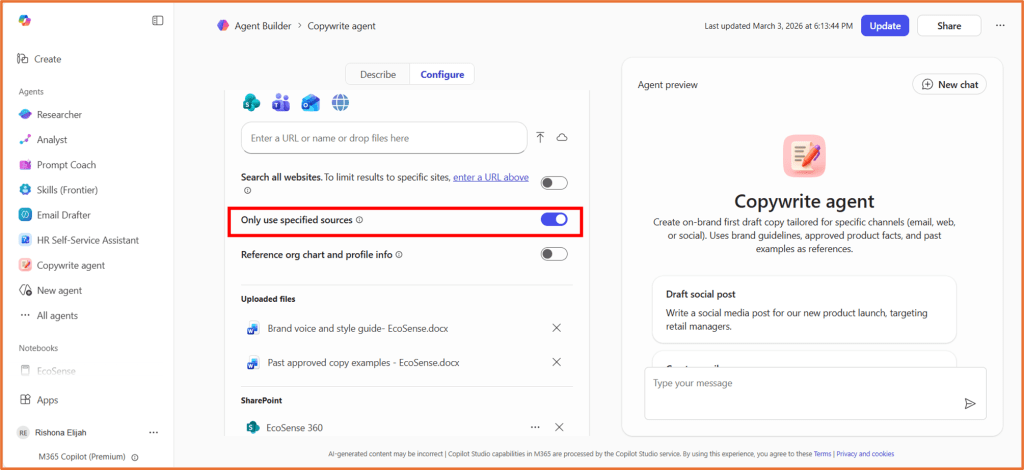
Capabilities:
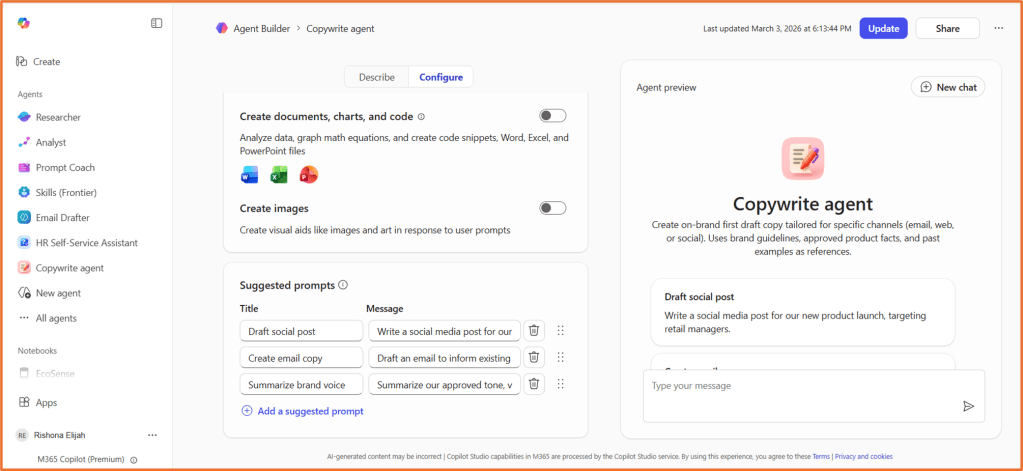
Create documents, charts, and code = ON
Suggested prompts
| Title | Message |
| Draft social post | Write a social media post for our new product launch, targeting [audience]. |
| Create email copy | Draft an email to inform [audience] about a [topic]. |
| Summarise brand voice | Summarise our approved tone, voice, and style |
Step 3: Create and refine the agent
Click Create.
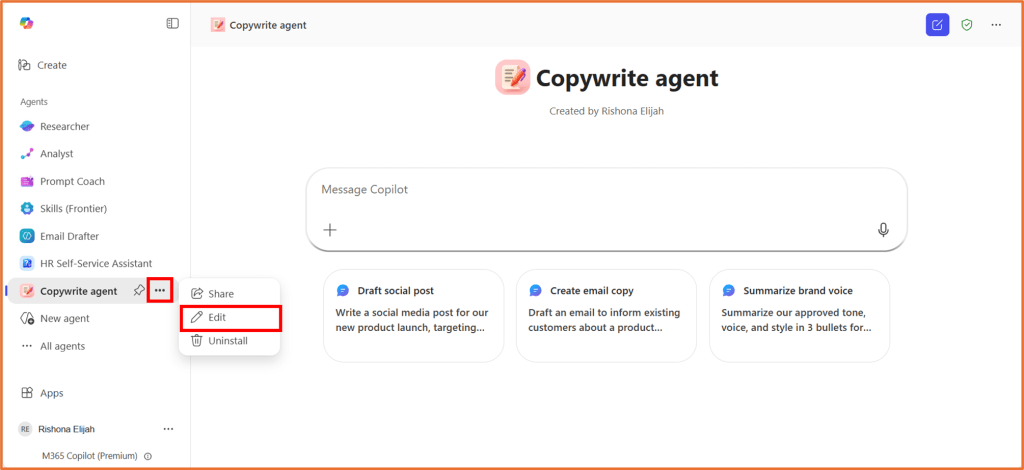
The agent should appear in your agent list. Give it a test and try out the suggested prompts. If you need to make any changes, click on … > Edit next to the agent name.

 Rishona Elijah