
If you have ever asked Copilot to summarise an email, draft a response, extract key points from a document, or classify a piece of text, you already understand the value of generative AI. But what if you need these things run as part of an automation, and not just when you open Copilot and ask for it? Prompts (or AI Prompts) are available to use as actions in your Power Automate flows and as tools you can add to your agents in Copilot Studio.
In Power Platform, prompts can be created, saved, and reused, which means they are not just one-off requests like the kinds of things you might type into Copilot during the day. Instead of typing a request into Copilot each time, you can create a prompt once, add inputs for the data you want to pass in, and use it again in a flow or agent.
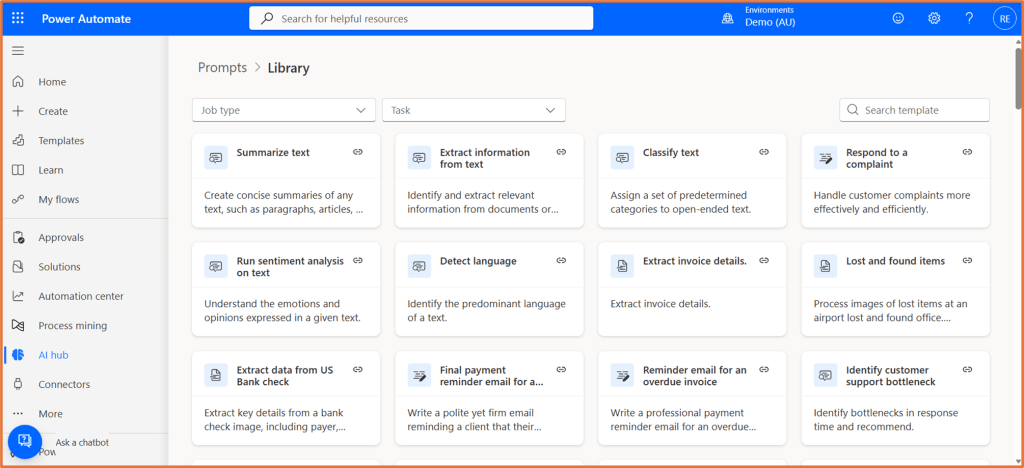
Where to find Prompts in Power Automate
You can browse a series of prompt templates in Power Automate here: https://make.powerautomate.com/aibuilder/prompts
Then, to use prompts as an action in your flow, add the AI Builder action Run a prompt. Select your prompt or create a new one.
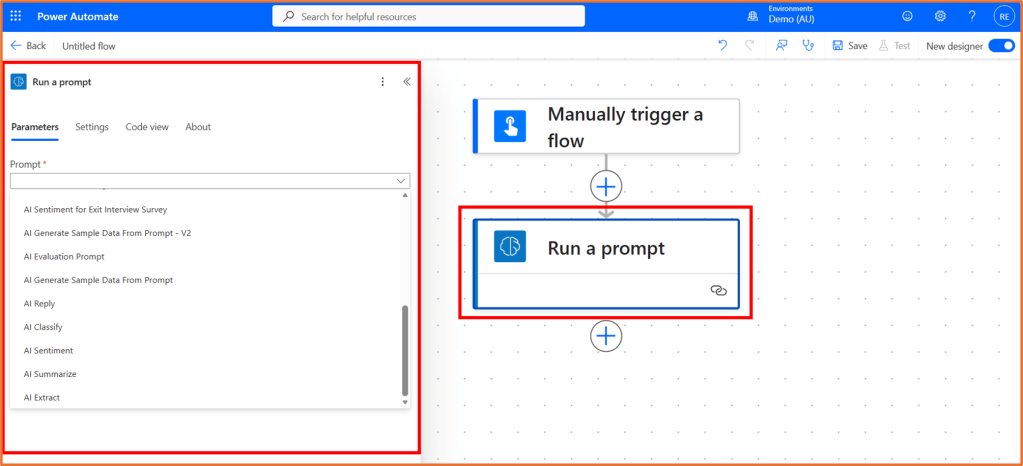
As with all other actions, the Run a prompt action can pass in content from earlier steps, and then use the output in later actions.
Ideas for use
- Summarise incoming emails or text: A flow can take the body of an email or message, pass it into a prompt, and return a short summary. That summary can then be posted into Teams, added to a SharePoint item, or included in an approval.
- Extract key details from unstructured content: A prompt can pull out important details from free text, such as names, dates, action items, contract changes, or invoice information. This is useful when the content is written naturally and does not follow a consistent format.
- Classify and route work: A flow can use a prompt to classify a request based on what the person actually wrote, then send it to the right queue or team. This works well for things like complaints, support requests, feedback, or internal service enquiries.
- Draft content for review: A prompt can generate a first draft of a reply, reminder, or follow up message, which someone reviews before it is sent.
Where to find Prompts in Copilot Studio
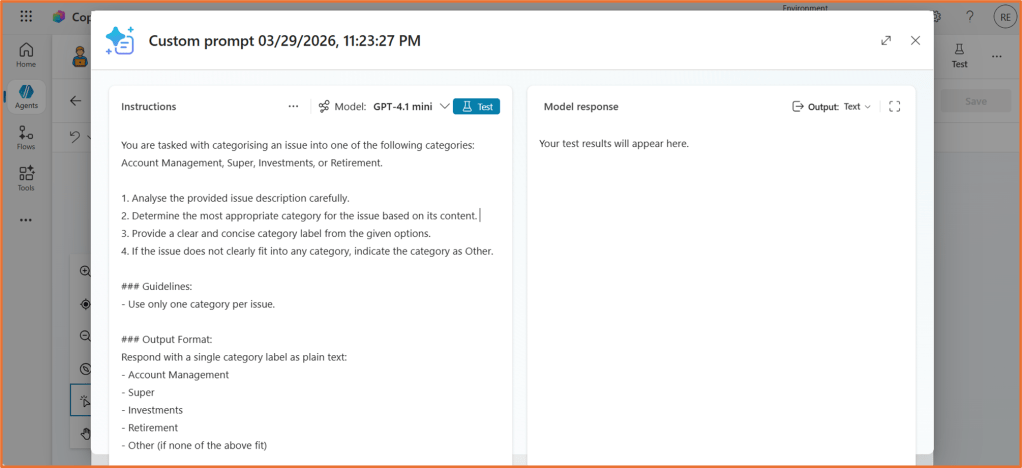
In Copilot Studio, prompts are a tool that can be used by your agent.
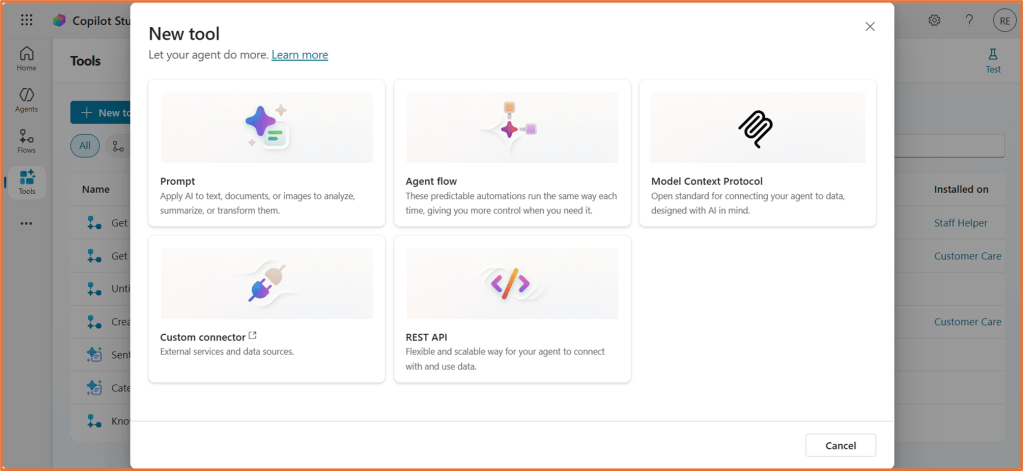
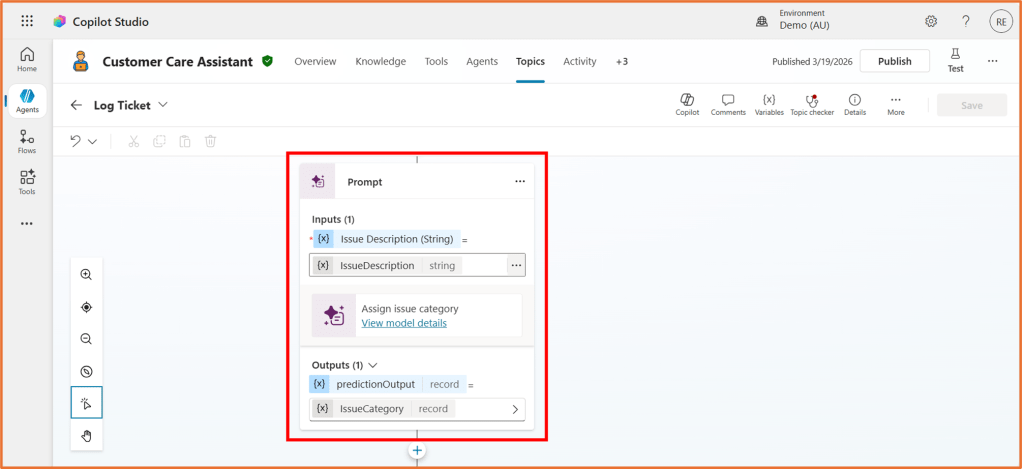
They work the same as in Power Automate, but rather than added to your flow, they can be added to your agent’s instructions or in a topic. Outcomes of the prompt can be stored as a variable in the conversation and used for conditional branching, surfaced to the user, or used later in the conversation or agent flow.
Ideas for use
- Generate interview questions from a job description: An agent can take a job description and use a prompt to generate relevant interview questions based on the role, skills, and responsibilities listed.
- Classify a user request before the next step: An agent can use a prompt to classify what the user is asking for, such as a complaint, enquiry, request, or escalation, before deciding how to respond.
- Summarise policies or procedures in plain English: An agent can use a prompt to take a long policy, procedure, or internal document and return a simpler summary.
Next
More on prompts coming soon!
- How to set up a prompt (coming soon)
- Generate interview questions from a job description (coming soon)

 Rishona Elijah