
Are you keen to get your hands on Copilot Studio, Power Automate, Power Apps or Power Pages? Often, one of the biggest challenges is getting access to a safe environment where you can experiment without affecting production data or licenses. I am going to take you through how you can create a free Power Platform Developer environment to build and test agents, apps and automations.
What is an environment?
In Power Platform, an environment is a space where your data, apps, automations and agents live. Each environment is isolated from the others, which means what you build in one environment does not affect anything outside of it.
A developer environment is a type of environment designed for learning, experimentation and personal development. It is private to you and intended for building and testing, not actual production use.
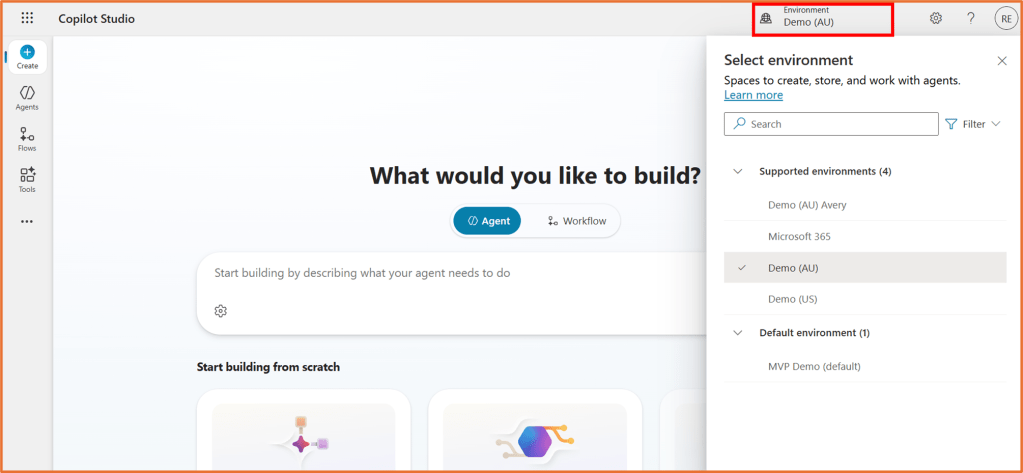
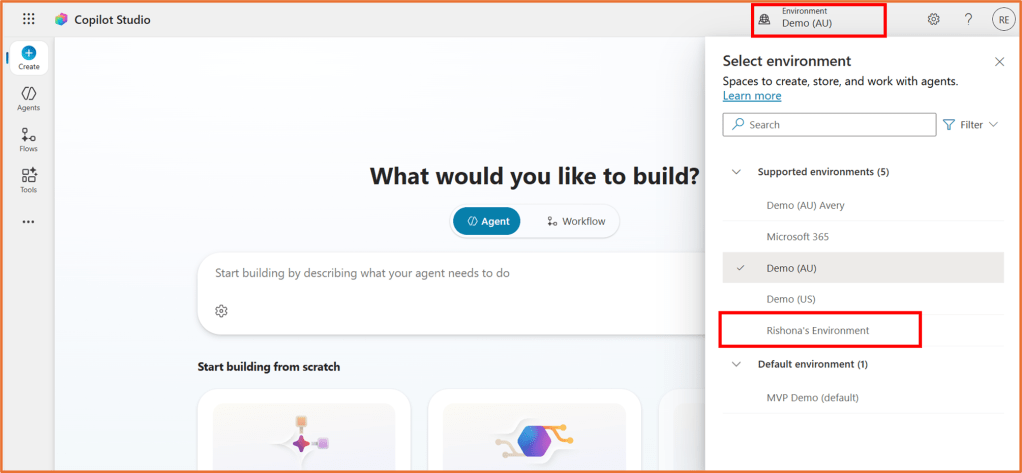
When in your Power Platform tools, you can see and switch your environment from the top right of the screen.
How to create your developer environment
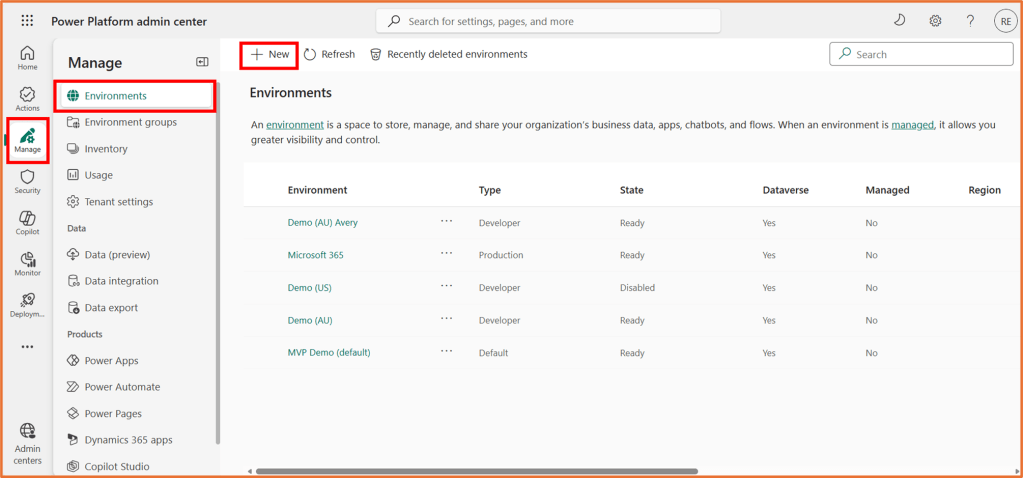
Go to the Power Platform admin center https://admin.powerplatform.microsoft.com/. From the left of the screen, select Manage > Environments > New.
Give your environment a Name, such as <your name>’s Environment. Select your Region.
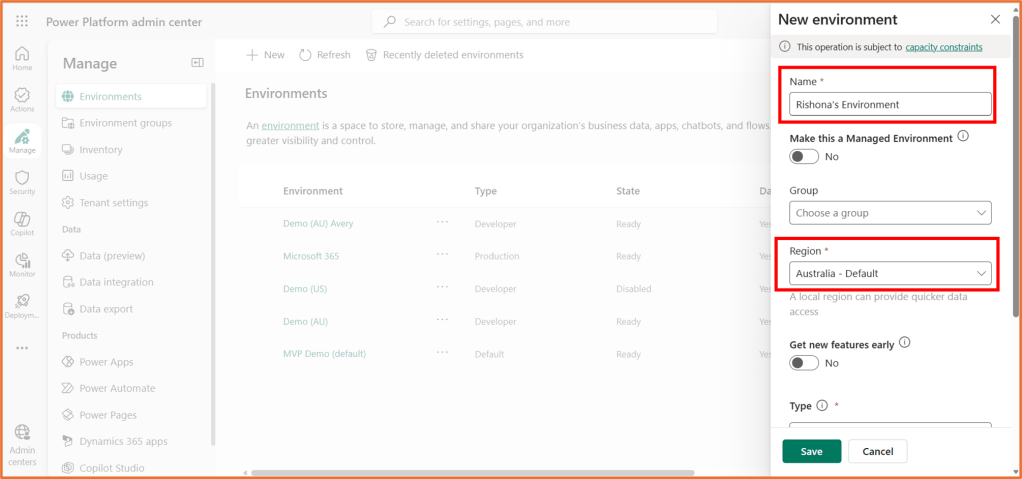
If you wish to see new features early, you can set your Region to United States and switch ON the toggle Get new features early.
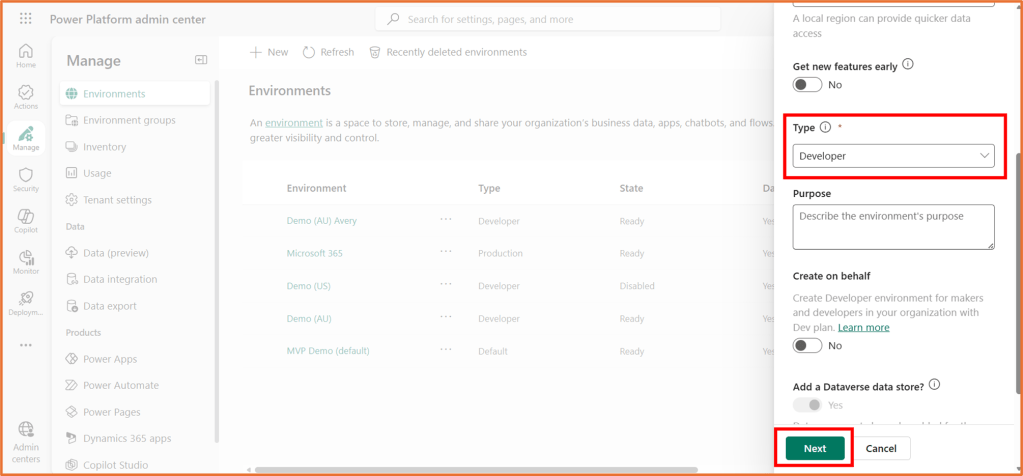
Set the Type to Developer and click Next.
Check that your correct Language and Currency is set. You can toggle ON Deploy sample apps and data. Click Save.
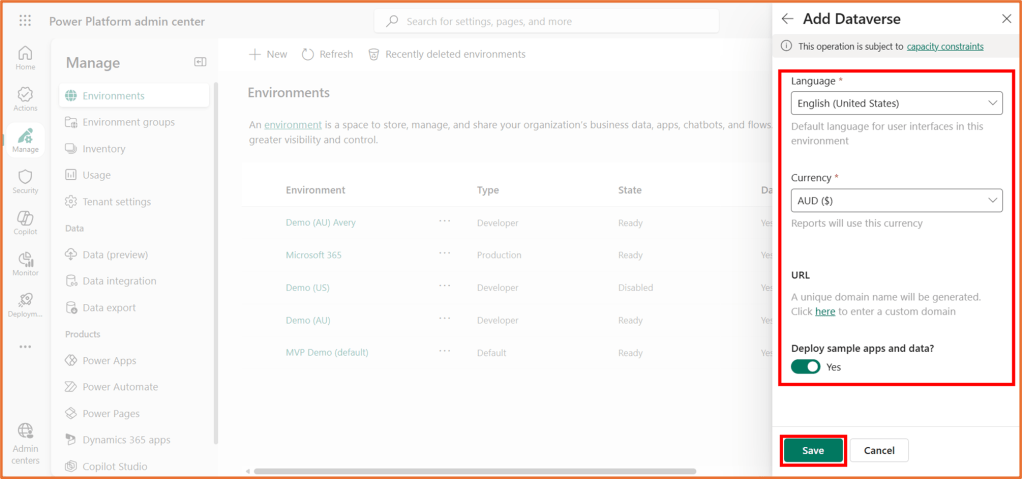
You can create a maximum of 3 developer environments
The environment will be created shortly.
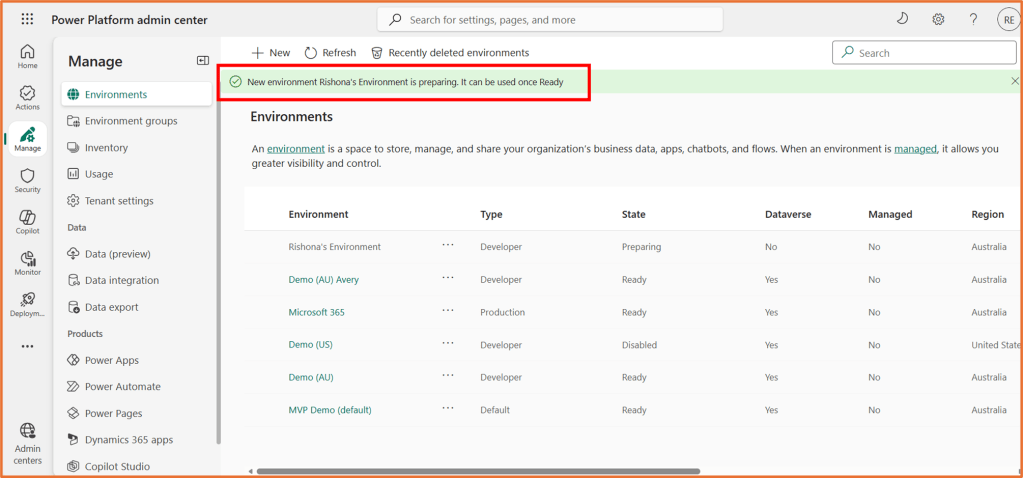
In a few minutes, you should see it appear in your environment list while using Power Platform tools.
If you don’t see your environment appear after about 15 minutes, try Ctrl+Shift+R to refresh the page and check again.

 Rishona Elijah