

You have a task and want to use AI to help you complete it. But how do you decide which Copilot experience is the right fit? Should you start a Copilot Chat for a one-off request, create an agent in Agent Builder, build a more advanced agent in Copilot Studio, or bring your information together in a Copilot Notebook? Each option can help you, but they are designed for different types of work. The right choice depends on whether you need help with a single task, a focused collection of knowledge, a repeatable experience or a solution that connects to processes and systems.
There can also be overlap. The same task could sometimes be completed using more than one option. The following questions can help you decide where to start.
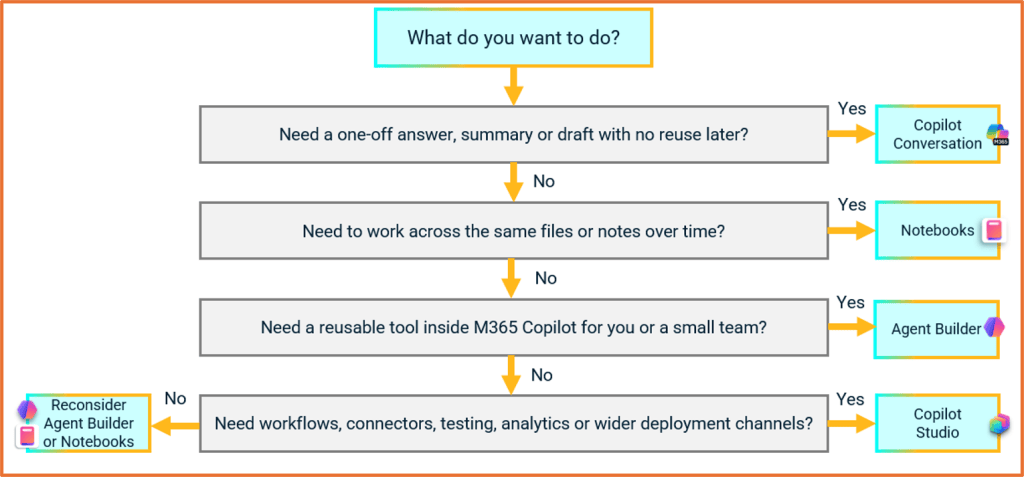
- Do you need a one off answer, summary or draft with no need to reuse the setup later?
Use a Copilot conversation. - Do you need to work with the same files, notes and other reference material over time?
Use a Copilot Notebook. - Do you need a reusable assistant inside Microsoft 365 Copilot for yourself or a small team?
Use Agent Builder. - Do you need workflows, connectors, structured testing, analytics or deployment to other channels?
Use Copilot Studio.
Copilot conversation: For one off work
https://m365.cloud.microsoft/chat
A Copilot conversation is the right place to start when you have an immediate request and do not need to preserve a reusable workspace or assistant. You provide a prompt, include the context Copilot needs, review the result and continue with your work.
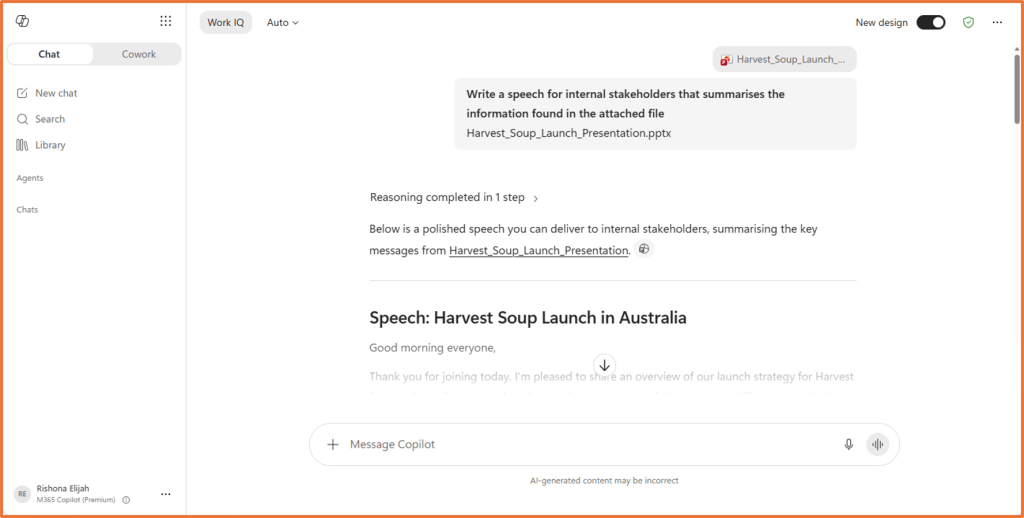
Examples include:
- Summarise an email thread and list the actions assigned to you
- Review a document and highlight its key risks
- Suggest ten names for an internal upskilling initiative
- Draft a short update for stakeholders
- Turn a set of meeting notes into a clear action list
These tasks may still require detailed prompts, attached files or follow up questions. The difference is that the request is temporary. You are trying to complete the task in front of you rather than create something for repeated use.
When to move beyond a conversation
A Copilot conversation is a useful place to test an idea before investing in another option. You could develop and refine a prompt that reviews an email, identifies its purpose, assesses urgency and drafts a reply. If you begin using it every day, it may be a candidate for Agent Builder.
Consider another option when you notice yourself doing one or more of the following:
- Attaching the same documents repeatedly
- Copying and pasting the same instructions into every conversation
- Asking Copilot to produce the same format each time
- Sharing a long prompt with other people so they can repeat the task
- Rebuilding the same context whenever you start a new piece of work
Copilot Notebooks: For ongoing work around a set of information
https://m365.cloud.microsoft/notebooks
A Copilot Notebook is an AI workspace grounded in the references you select. It is designed for research, planning and ongoing work where the same body of context matters across multiple questions and outputs.
Rather than repeatedly attaching the same files, you bring the relevant material together once. You can then ask questions, generate drafts and refine ideas using that consistent context.
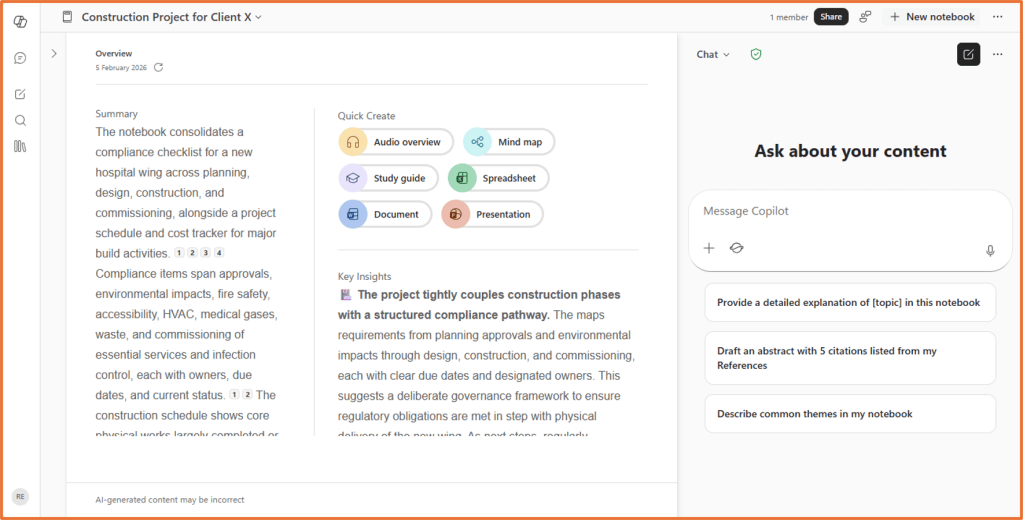
A Notebook begins with the information. You are saying, “These are the materials I am working with. Help me understand, analyse and create from them.”
Useful Notebook scenarios include:
- A project workspace containing the project brief, budget, meeting notes, risks and draft report
- A stakeholder presentation workspace containing supporting slides, talking points and anticipated questions
- A customer issue workspace containing support tickets, emails and previous resolution steps
- A recruitment workspace containing the position description, requirements and candidate information
- A decision workspace containing evidence, options, assumptions and recommendations
- An executive briefing workspace containing papers, meeting notes, decisions and actions.
Unlike an Agent Builder agent, Notebooks are not limited to one repeatable output. The same collection of information can support many related activities. You might use it to investigate an exception in the morning, draft an update in the afternoon and prepare meeting questions the following day.
When to use a Notebook
Choose a Notebook when:
- The work is centred on a defined collection of reference material
- You expect to ask different questions about the same material
- The context needs to remain available across several sessions
- You are researching, planning, analysing or drafting
- You want a focused workspace rather than a single purpose assistant
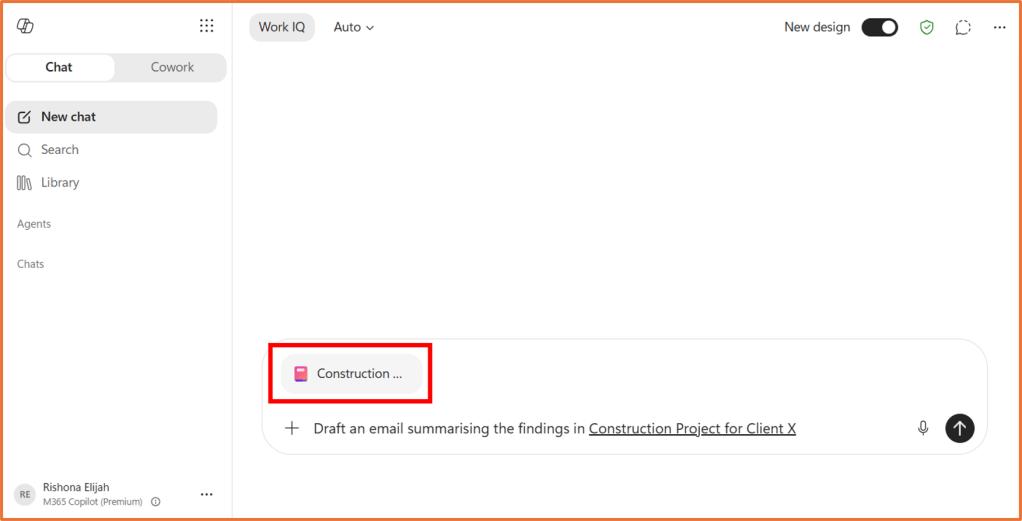
Furthermore, Notebooks appear part of Work IQ and can be used as sources in Copilot Chat and Copilot in the M365 apps. Notebooks can be shared with your team, so that everyone can have their own private chat with the Notebooks and it’s references.
Agent Builder: For a reusable assistant inside Microsoft 365 Copilot
https://m365.cloud.microsoft/agents/new
Agent Builder is designed for creating a reusable conversational assistant for yourself or a small team. The assistant performs a specific job repeatedly using defined instructions and approved information.
An agent combines:
- Instructions: What the agent should do and how it should respond
- Knowledge: The documents, pages, sites or other approved sources it should use
- Suggested prompts: Examples that help users understand how to start
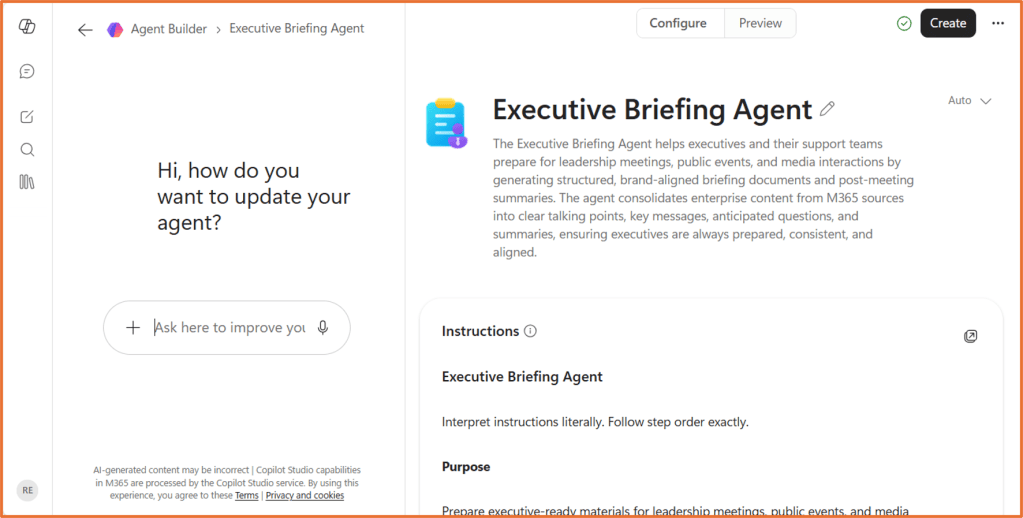
Agent Builder is best suited to predictable, repeatable and knowledge based tasks. Common patterns include guidance agents, drafting agents and triage agents. A guidance agent might answer questions from an approved policy library. A drafting agent might create emails in a standard tone and structure. A triage agent might review information and classify it before presenting a clear action summary.
Examples include:
- An email triage assistant that identifies a message’s purpose, category, urgency, required action, missing information and suggested reply
- A meeting summary agent that produces decisions, risks, open questions and actions in a consistent format
- A quiz creator that produces multiple choice questions from text supplied by the user
- A communications assistant that drafts correction requests, missing information requests and follow up emails
- A project reporting agent that generates project updates using approved template and project information
When to use Agent Builder
Choose Agent Builder when:
- The task will be performed repeatedly
- The purpose of the assistant can be clearly defined
- Users should receive a consistent style or format
- The assistant needs approved organisational knowledge
- The experience will be used in Microsoft 365 Copilot
- The audience is an individual or small internal group
- The agent primarily needs to answer, summarise, classify, review or draft
When Agent Builder is not enough
Agent Builder is not the right option when the solution needs to run workflows, integrate with business systems or operate across a broader range of channels.
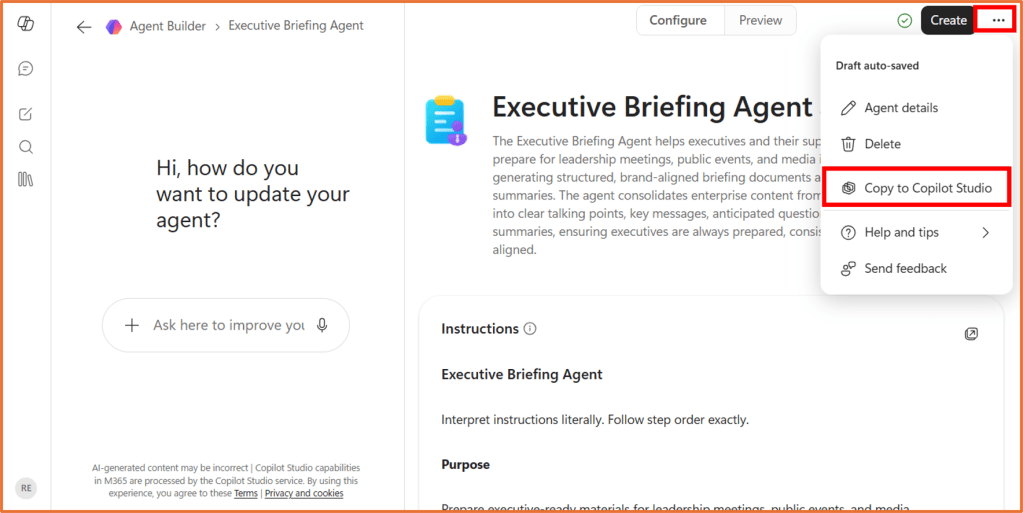
You can start in Agent Builder to prove the idea quickly and then copy the agent into Copilot Studio when you need to extend it.
Copilot Studio: For agents that take action and connect systems
https://copilotstudio.preview.microsoft.com
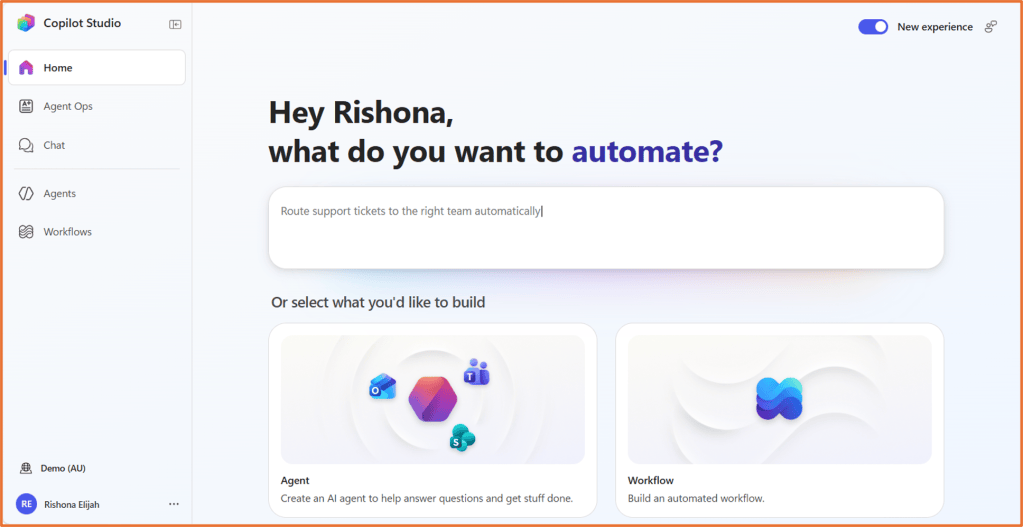
Copilot Studio is the option for advanced agents that need workflows, integrations, structured conversations, testing, analytics, governance or broader deployment.
It can publish agents to multiple channels, including websites and voice experiences. It can connect to business systems through connectors and Power Automate flows, build multi step workflows, control authentication, support lifecycle management and provide analytics about how the agent is being used.
Consider an IT helpdesk agent. In Agent Builder, the agent could answer common support questions from an approved knowledge source. In Copilot Studio, the experience could also:
- Ask the user structured questions about the issue
- Capture the person’s details, problem description and priority
- Categorise the request
- Write the ticket to a connected system or spreadsheet
- Look up the team member responsible for that category
- Send a Teams notification
- Confirm to the user that the ticket has been submitted and assigned
When to use Copilot Studio
Choose Copilot Studio when:
- The agent must take action in another system
- The experience requires connectors or Power Automate flows (“workflows”)
- The conversation must follow controlled questions, conditions or branches
- The agent will be published to a website, voice channel or another application
- Different audiences require specific authentication and access
- The solution needs formal testing and evaluation
- Usage and performance need to be monitored through analytics
- The agent requires enterprise governance and lifecycle management
- The solution is expected to scale beyond a small internal team
Summary: Choose the simplest option that meets the need
Select the simplest option that meets the need. Building an agent when you only need a quick summary creates unnecessary work. Using a single conversation for a task you repeat every week means repeatedly supplying the same context and instructions.
- Copilot conversation: Reuse is not required. You need an answer or output now.
- Copilot Notebook: Reuse the context. You want to keep working with the same collection of material.
- Agent Builder: Reuse the assistant. You want a specific task completed consistently.
- Copilot Studio: Reuse and automate the process. You need the agent to connect, act, scale and be managed.


