
Documenting a process often takes longer than building it. In my work as a trainer, I often need to create step-by-step guides to help people follow a process. If you’re in the similar business of writing documentation, user guides and training manuals, then you are already know how time consuming it can be.
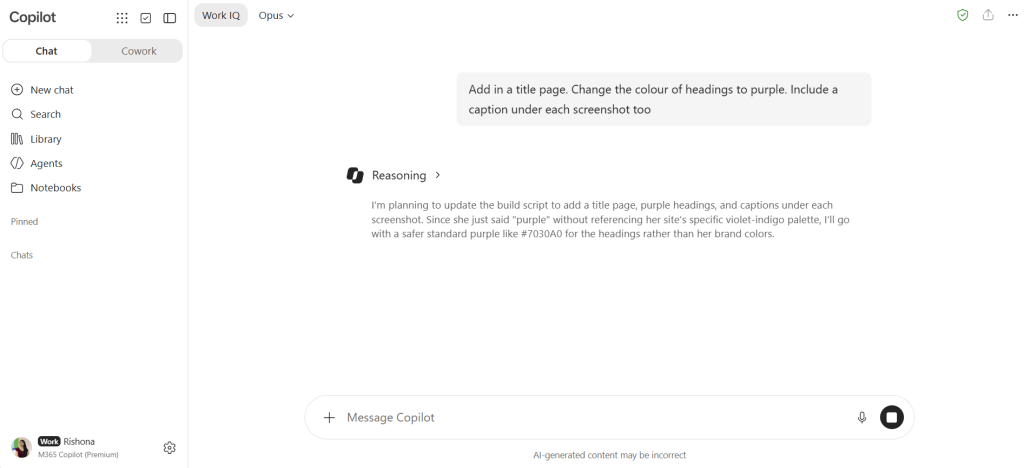
Example: A 51 page training manual for a process that likely only took you 15 minutes to complete, but a week to write up.
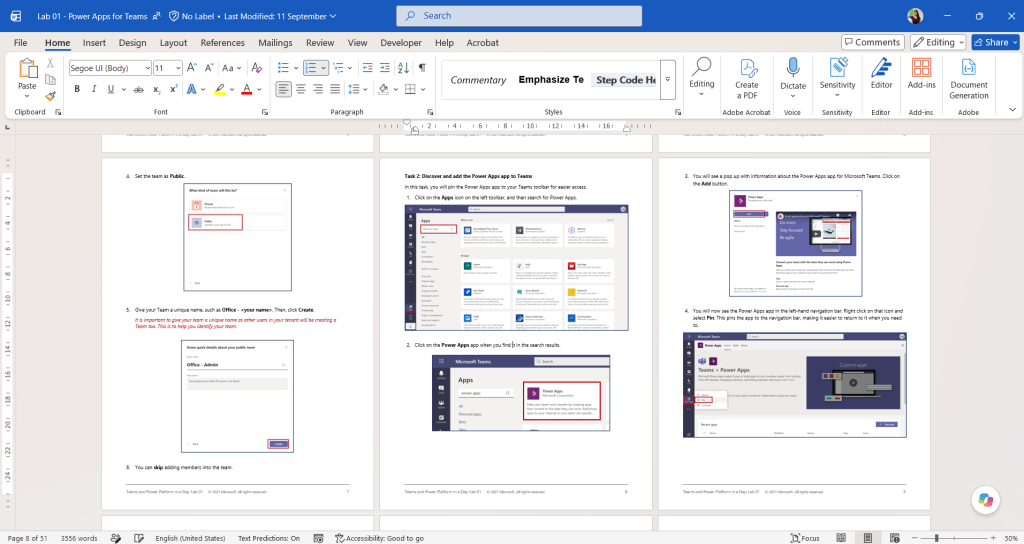
You end up spending more time than you’d like writing and tidying up the document:
- Typing out each step in detail
- Numbering that has to stay accurate as steps are added or removed
- Headings that follow a consistent hierarchy
- Images that need captions and alternative text
- Terminology that stays consistent from first page to last
- Formatting that matches your organisation’s template
Here’s what I do now. Using Copilot as part of the process has helped me cut down a task that usually took me 5 days, to only 1. My example below is related to writing a step-by-step training exercise for software (Copilot Studio), so the key part of the process involves screenshots with mouse clicks and text user’s need to type in.
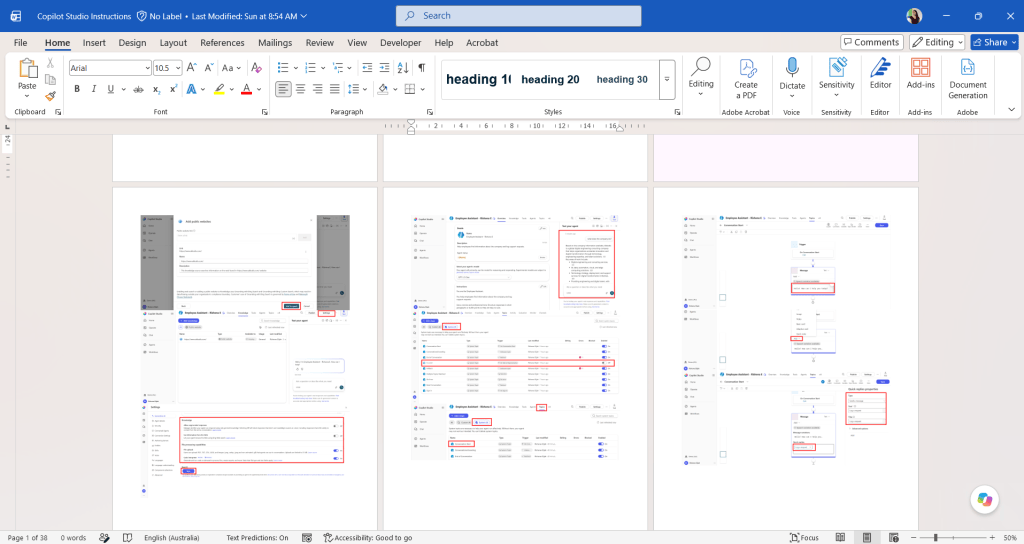
1. Go through the process. At each step, take a screenshot and mark the mouse clicks on it. As you take each picture, paste it into a Word document in the order it needs to appear. This is my example with 38 pages of just screenshots.
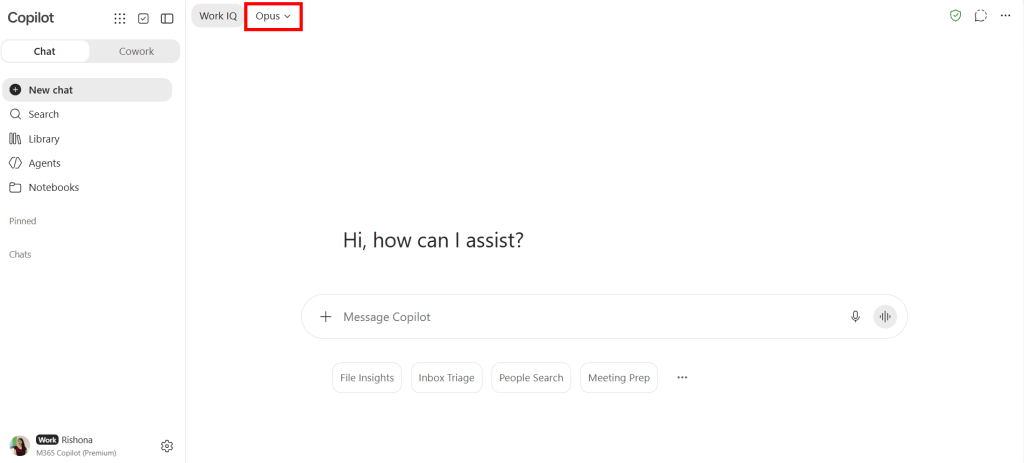
2. Save the Word doc. Then head to Copilot at https://copilot.cloud.microsoft/chat and switch on the Opus model.
3. Enter a prompt like the one below. To give it more context easily, I recommend switching on dictate and explaining what you’d like it do it. Much faster than typing! In the prompt, attach the document with your screenshots and attach a sample file of documentation you’ve created in the past. This is so it can follow the writing style, formatting and structure, but apply it to your new process. The sample document does not have to be a related topic.
This document [attach Word doc with your screenshots] contains screenshots for instructions on [give it as much context about your process and intended audience] .
Turn this into a numbered step by step manual. Add alternative text to each image.
I have attached an example of how I usually write my instruction guides. Use this for guidance on the type of style and formatting you should use [attach a sample of a completed guide you have created in the past].
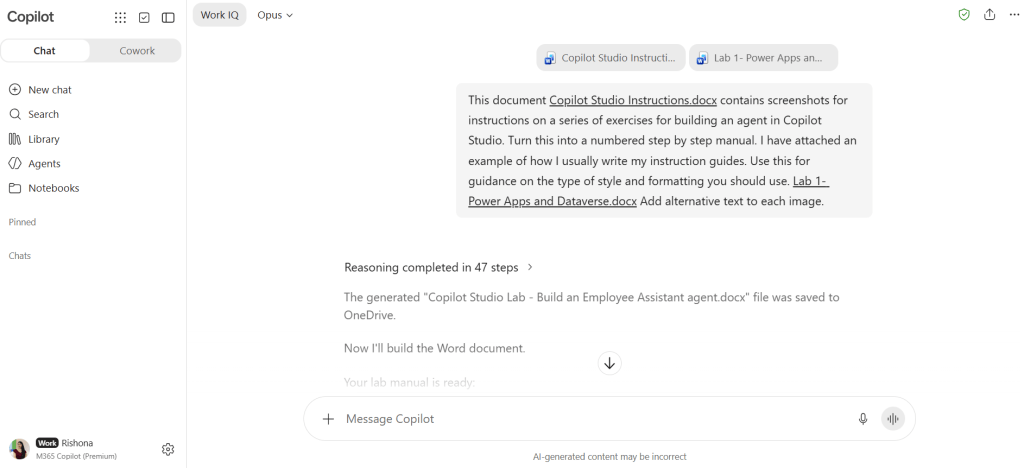
4. Leave it running, and eventually it will create the completed version of the document for you. You’ll be amazed at how much it was able to do.
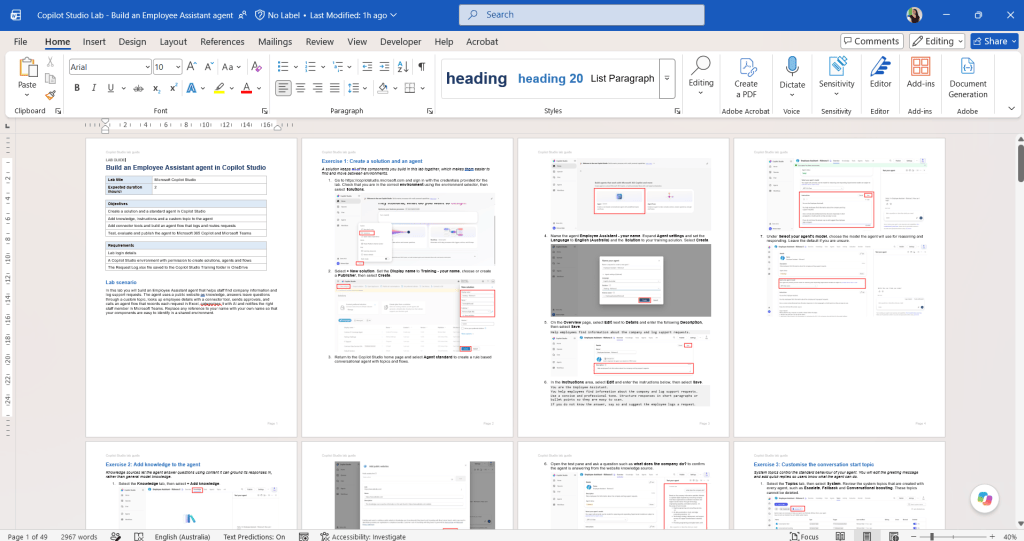
5. As you review the output, continue following up in the same chat with your feedback. It will keep refining the document by creating a new copy of it.