
When you need to create a document using an existing template, you usually want to preserve its structure, formatting and standard content while adding the information relevant to your current task. Copilot in Word can help you do this directly within the document, so you do not need to generate the content separately and then manually copy it into each section.
The key is to open the template first and then ask Copilot to update it in Edit mode. This gives Copilot the existing document to work with, including its headings, layout and content.
You can explain what information you want to add, tell Copilot to use the existing template and specify what it should leave unchanged. Copilot can then populate the relevant sections while keeping everything else in place.
Start with the template
Begin by opening a copy of the document with the template in Word. Your template might already contain:
- The organisation’s branding and document styles
- Standard headings and sections
- Instructions or placeholder text
- Approved wording that must appear in every document
- Content that should remain unchanged
You do not want Copilot to create a completely new document with its own structure. You want it to work within the document you already have.
Example: Below is my template for a project weekly status report. It contains information from a previous week, and I now need to update it with the new content. So I create a copy document of the previous week’s update to being with.
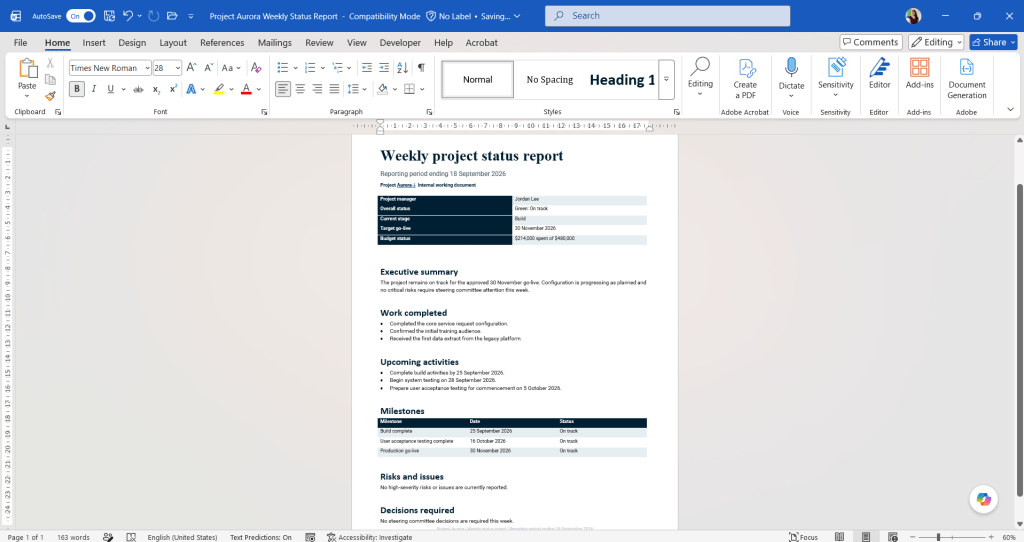
Use Copilot in Edit mode
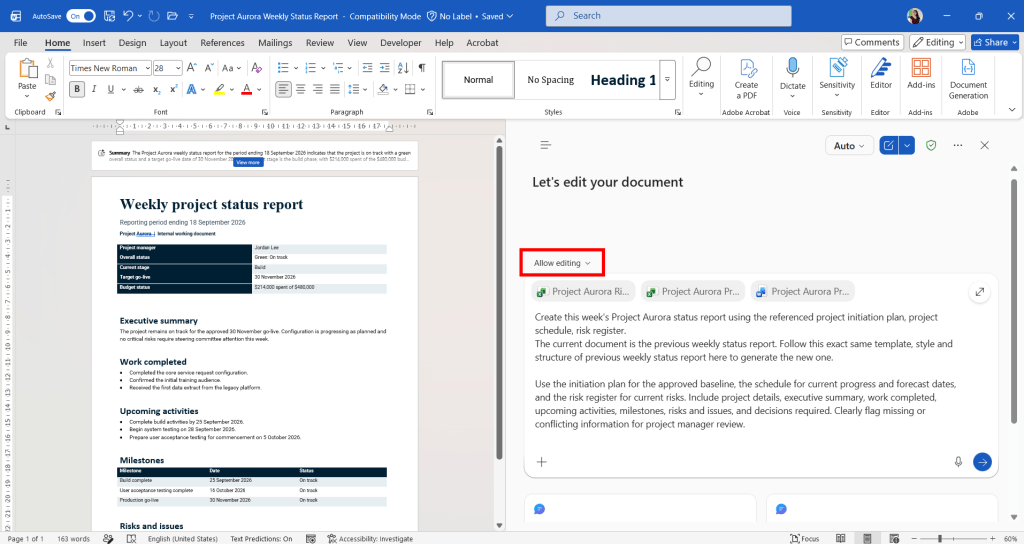
With the template open, select Copilot and use Edit mode. This allows you to ask Copilot to update the document directly.
Your prompt should explain:
- What the document is
- What information Copilot should use
- Which sections it should populate
- What content and formatting it should preserve
- What Copilot should do when information is missing
It needs to know that the current document is a template, which you want to preserve. Add a statement like this to your prompt:
This document contains a template for formatting. Follow the guidelines and style in this document, and update it to draft something new. Draft a …
Example: In my project status report template, I can enter a prompt like this:
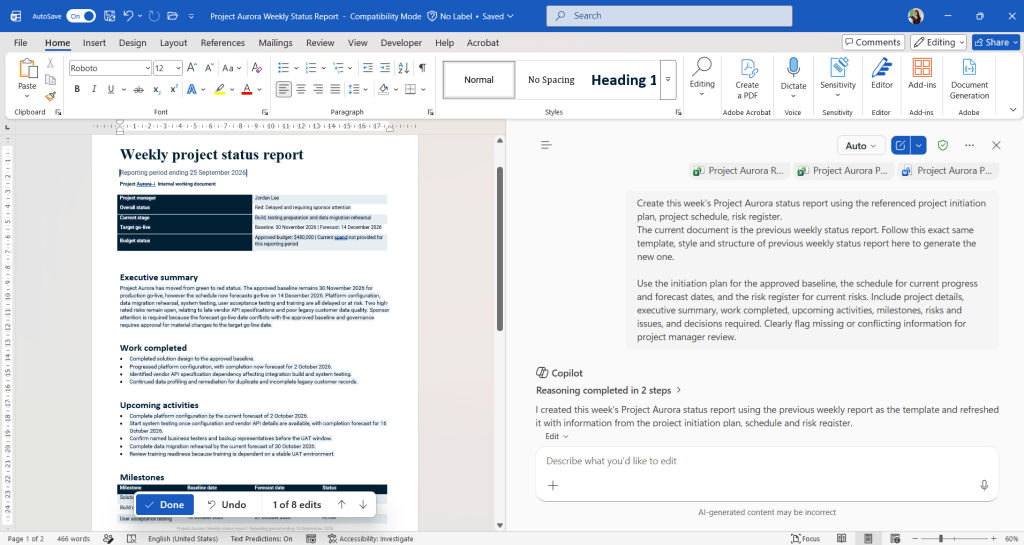
Create this week's Project Aurora status report using the referenced project initiation plan, project schedule, risk register.

The current document is the previous weekly status report. Follow this exact same template, style and structure of previous weekly status report here to generate the new one.

Use the initiation plan for the approved baseline, the schedule for current progress and forecast dates, and the risk register for current risks. Include project details, executive summary, work completed, upcoming activities, milestones, risks and issues, and decisions required. Clearly flag missing or conflicting information for project manager review. [Project Aurora Project Schedule.xlsx Project Aurora Risk Register.xlsx Project Aurora Project Initiation Plan.docx]

Flag any missing details for me to review.
Upon running the prompt, you can see below that it has kept the same structure and style, but has replaced the details using the sources attached to my prompt.