
The Workflows app in Microsoft Teams helps you automate repetitive tasks. It is a lightweight version of Power Automate. With it’s AI powered automation templates, you can can use Copilot to prepare summaries, identify action items and deliver useful updates on a recurring schedule.
Scheduled prompts or workflows?
Microsoft 365 Copilot allows you to schedule prompts, such as a daily brief or a weekly summary. The result appears as a chat in Copilot. But what if you prefer to have the updates via Teams message or email? You can use the Workflows app in Teams. A workflow can run the prompt on a schedule and then deliver the response using Teams or Outlook.
Get started
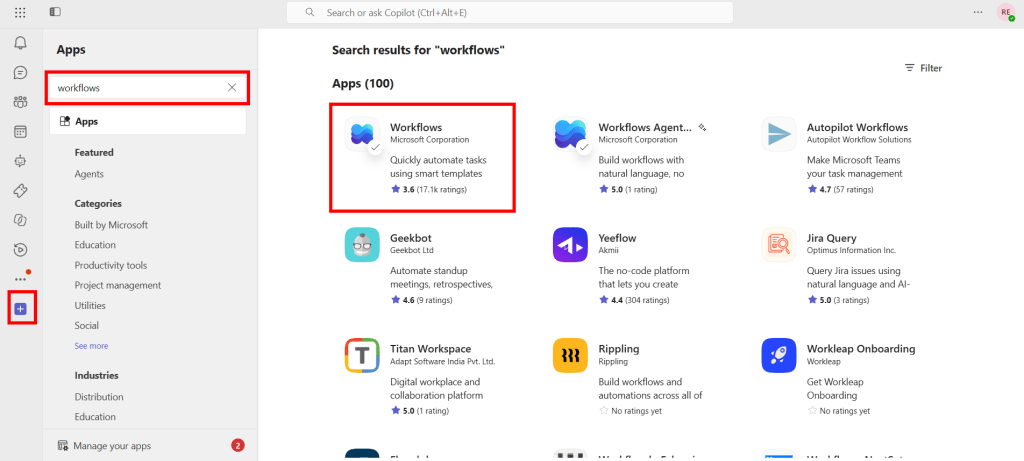
Search for the Workflows app in Microsoft Teams.
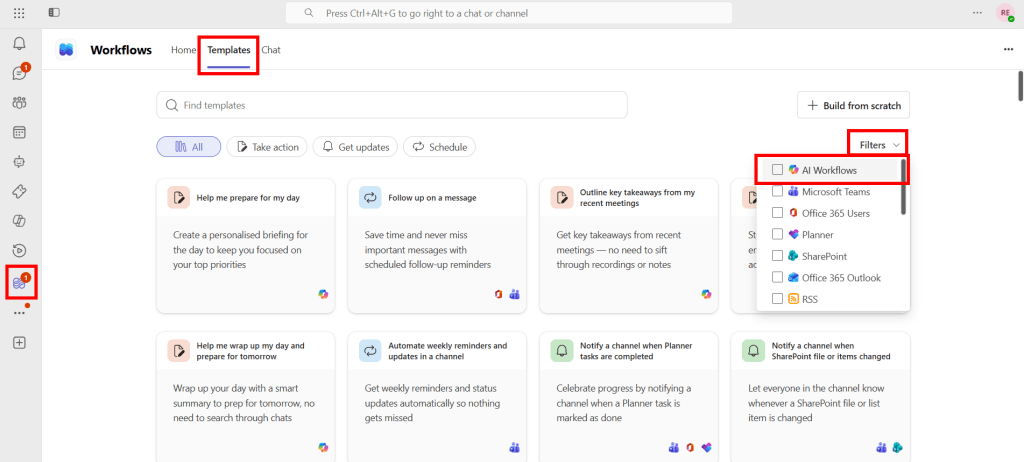
In the Templates area, select Filters, then choose AI Workflows. You can also identify these templates by the Copilot icon displayed on the template card.
The available templates include options to:
- Prepare for your day
- Summarise recent meetings
- Highlight action items from communications
- Prepare for tomorrow’s meetings
- Wrap up your day
- Recap communications about a topic
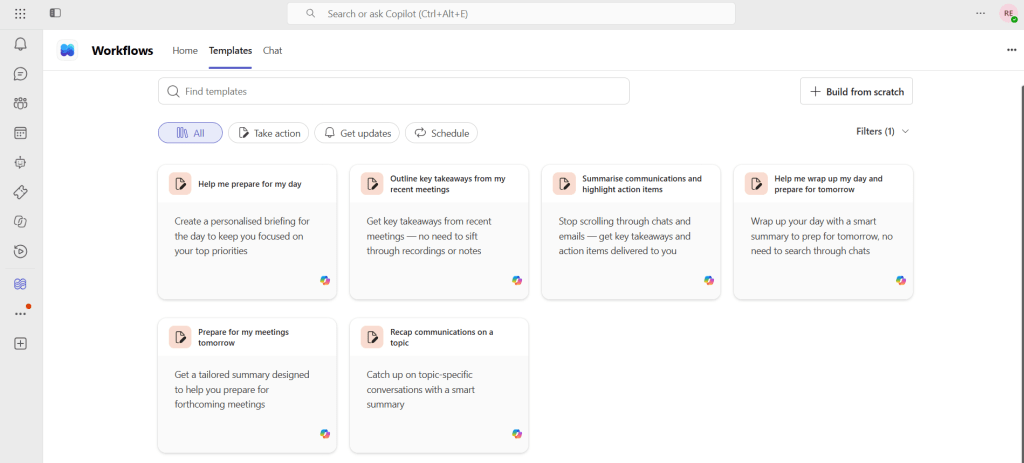
These templates provide the structure for the workflow, so you only need to configure the details.
Configure an AI workflow
Select the template that best matches the update you want to receive. For example, you can use a template to send you personalised meeting prep.
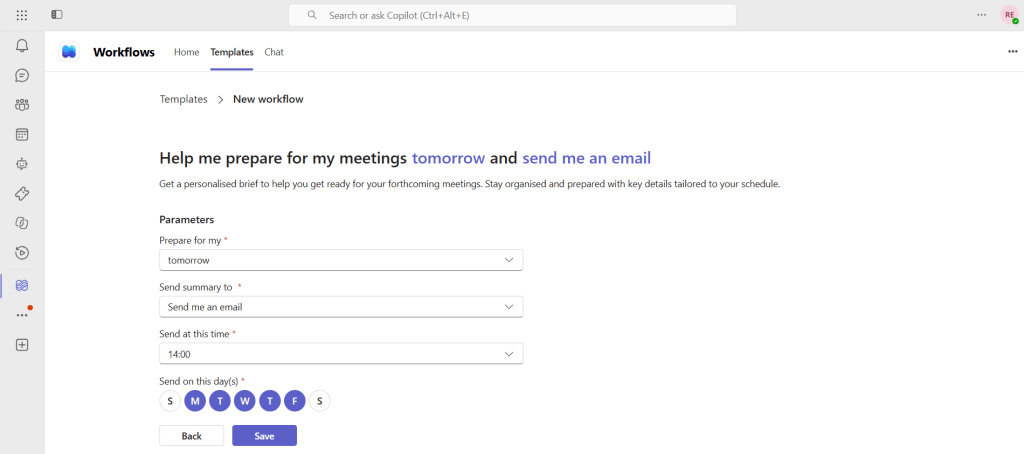
After selecting a few simple configuration options, select Save to activate the workflow. Teams notifications will be delivered to you in a private chat with Workflows.
These automations are using Work IQ to search your Microsoft 365 data, including your calendar, emails, Teams chats, meetings, OneDrive and SharePoint files.
Manage your workflows
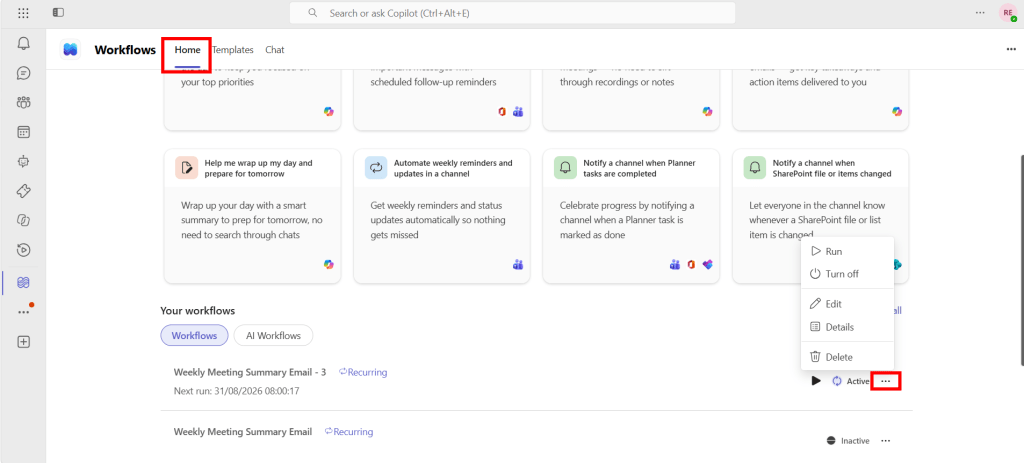
Back in the Home area of Workflows app, you can see, edit and disable your workflows.