

Do you regularly deliver the same presentation? Create in Microsoft 365 Copilot can turn an existing PowerPoint presentation into a narrated video. A PowerPoint presentation may already contain the approved messages, structure and visual content you need. Copilot helps add the narration and turn the presentation into something people can consume without a live presenter.
For example, imagine that you provide the same monthly project update to several stakeholder groups. Instead of presenting the update multiple times, you could create one narrated video, review the content and share it with everyone.
The same approach could be used for onboarding. If each new employee needs an introduction to a process, system or service, a presentation can be converted into a video and made available as part of their onboarding resources.
This feature is available on both Basic and Premium M365 Copilot
How to do it
Head to https://m365.cloud.microsoft/create to launch Create. Or in M365 Copilot, select the app launcher in the upper left corner, then select Create.
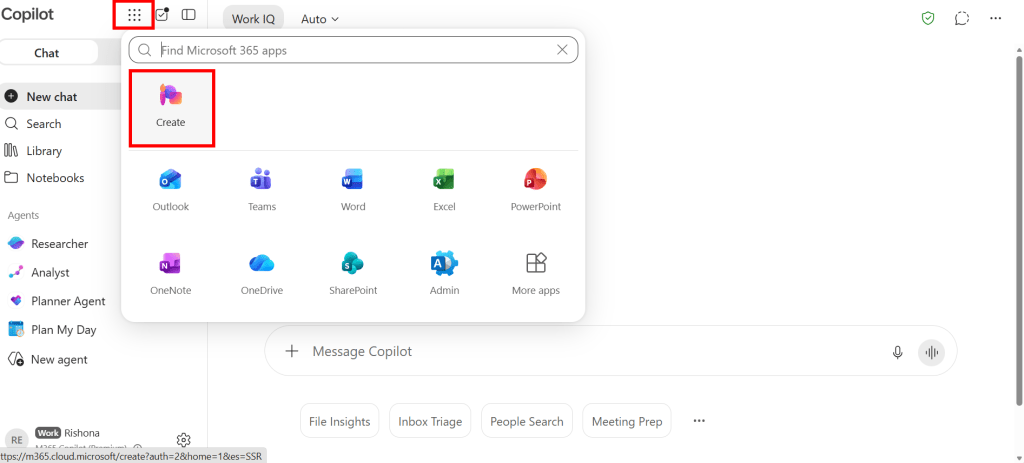
The Create experience brings together several content creation options, including presentations, documents, images, infographics and videos. From the Create page, select Video from the list of available content types.
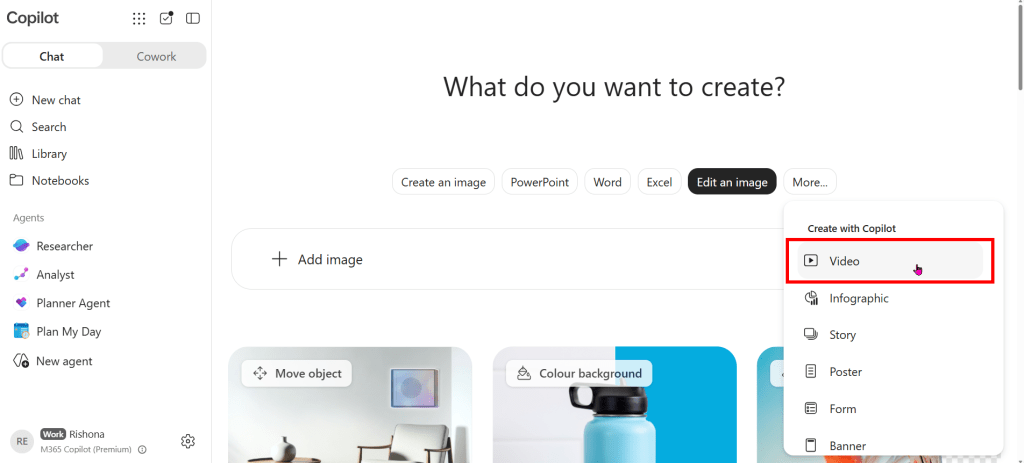
Check your organisation’s licensing and Microsoft 365 configuration if you cannot see the video option.
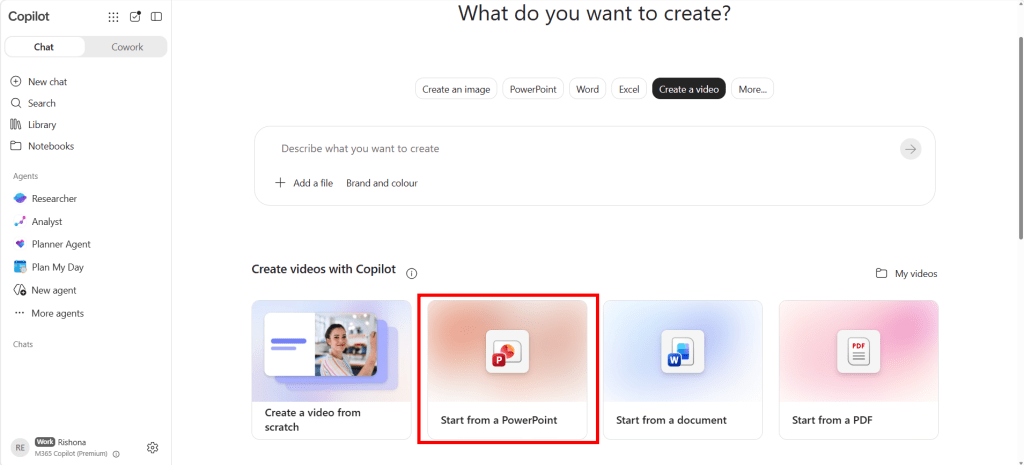
The video creation area lets you describe a new video, add a supporting file or start with existing content. Under Create videos with Copilot, select Start from a PowerPoint.
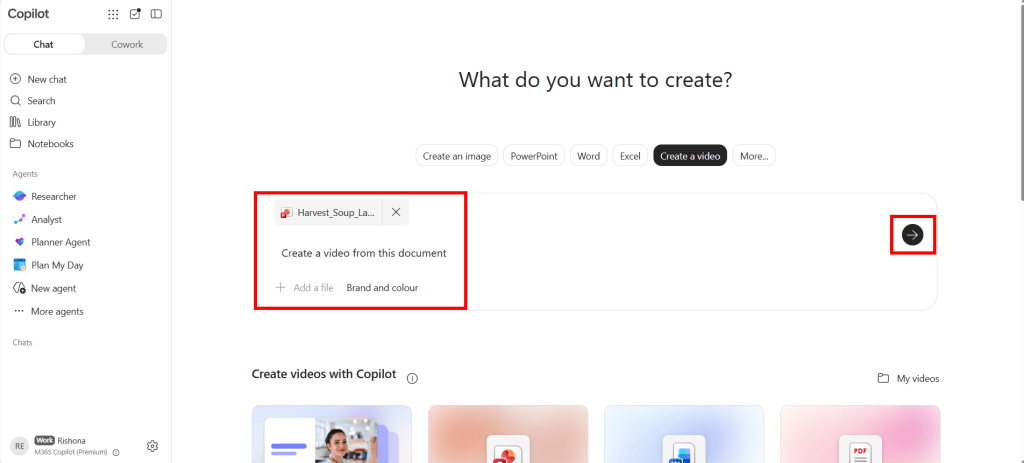
Add the PowerPoint presentation that you want Copilot to use. Once the file has been attached, you can optionally provide some additional instructions. For example, you could explain the intended audience, the purpose of the video or the type of language you want Copilot to use.
After processing the presentation, Copilot creates a draft video that combines the presentation content with a generated transcript and voiceover.
Modify the draft video
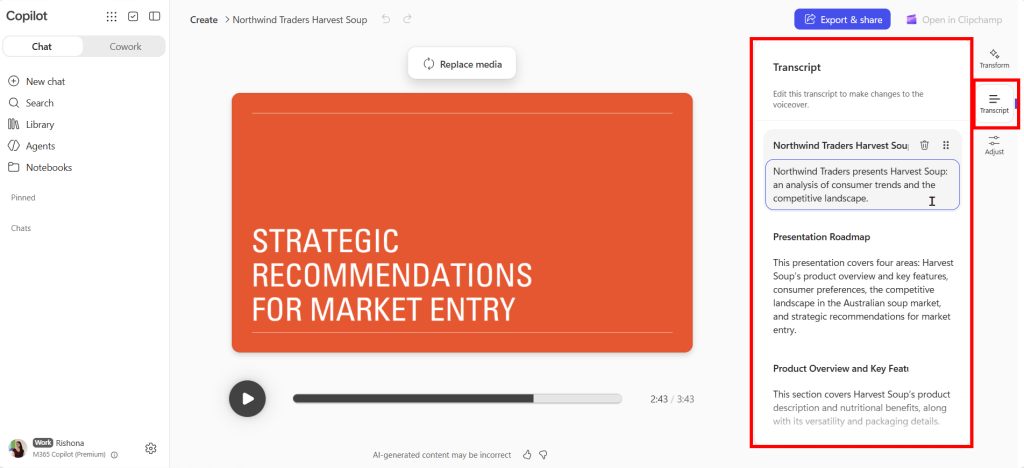
Select Transcript on the right side of the video editor. Copilot generates narration for the video based on the content in the PowerPoint presentation. Select any transcript section to edit the narration.
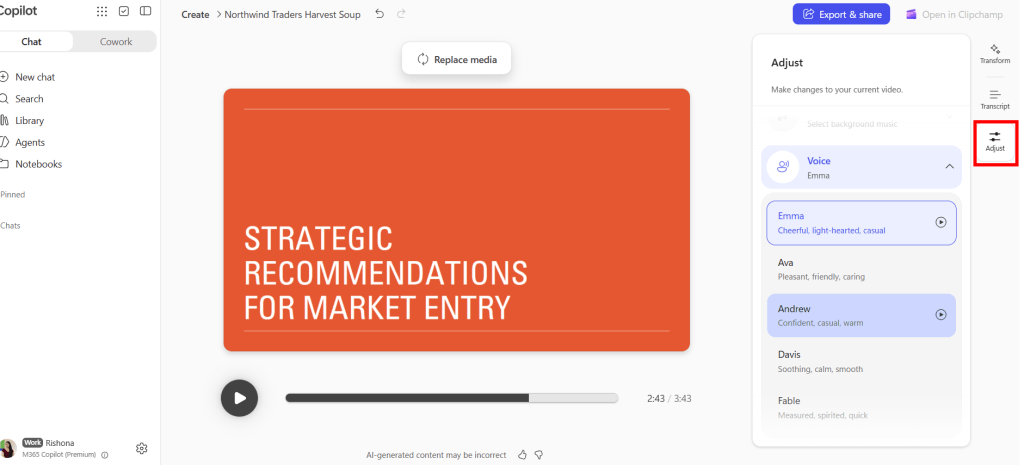
Select Adjust, then expand the Voice section. Copilot provides several generated voices. Use the preview (play) button next to a voice to listen to a sample before selecting it.
Select Transform to change how Copilot presents the content. Under Tone, you can retain the automatic tone or select another available option, such as confident, adventurous or casual.
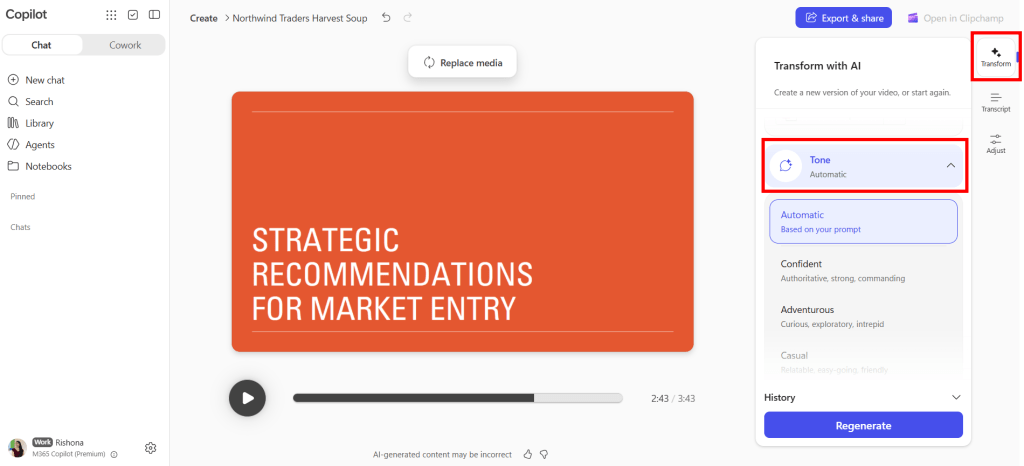
Changing the tone creates a new version of the video rather than simply changing an individual sentence. Select Regenerate to apply the selected tone and produce another draft.
When ready, you can Export and share. You can use Clipchamp for further edits to the video.


