

You might expect to be able to upload a video to Microsoft 365 Copilot and start asking questions about it, just as you would with a Word document, PowerPoint presentation or PDF. However, video files do not work that way in Copilot.
Instead, you can upload the video to Microsoft Clipchamp (previously known as Stream), generate a transcript and then use Copilot within Clipchamp to ask questions about what was said.
Copilot is using the transcript to answer your questions. It is not watching or analysing the visual content of the video.
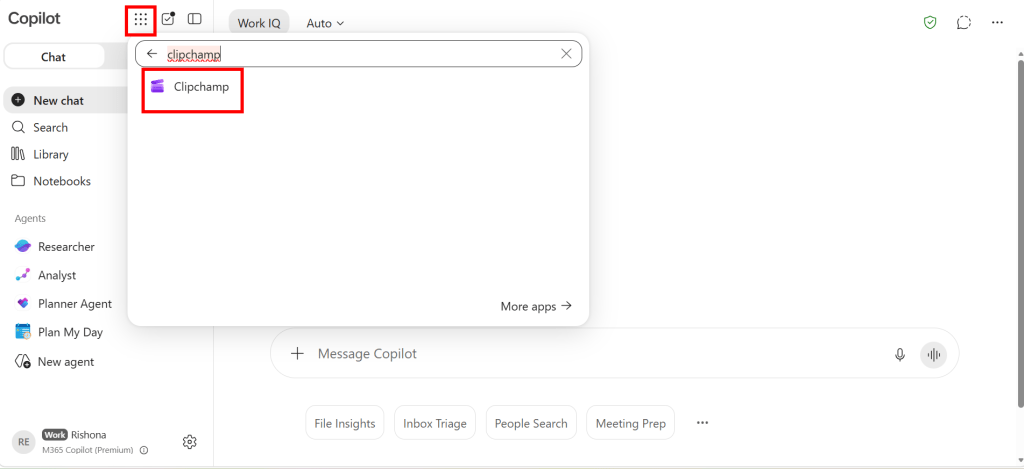
You can access Clipchamp from the Microsoft 365 Copilot app. Select the app launcher in the top left corner, search for Clipchamp and open the app.
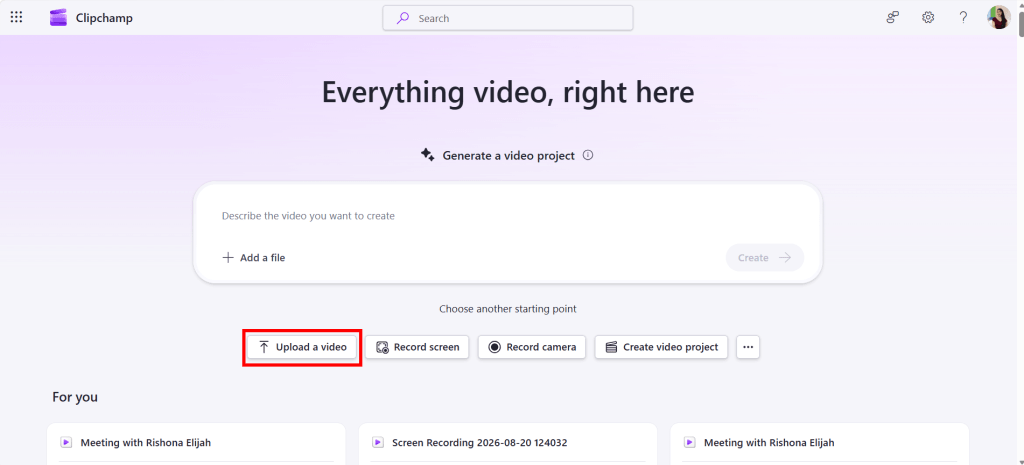
From the Clipchamp home page, select Upload a video.
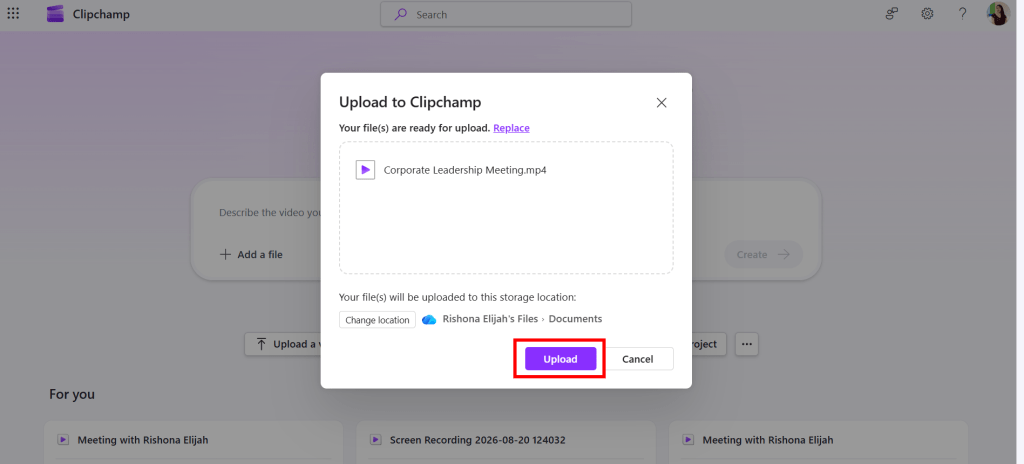
Choose the video file that you want to work with. Select Upload to continue.
The video is uploaded. Depending on the size of the video, it may take some time for the upload and processing to complete. Launch the video in Clipchamp once uploaded, and select Generate Transcript.
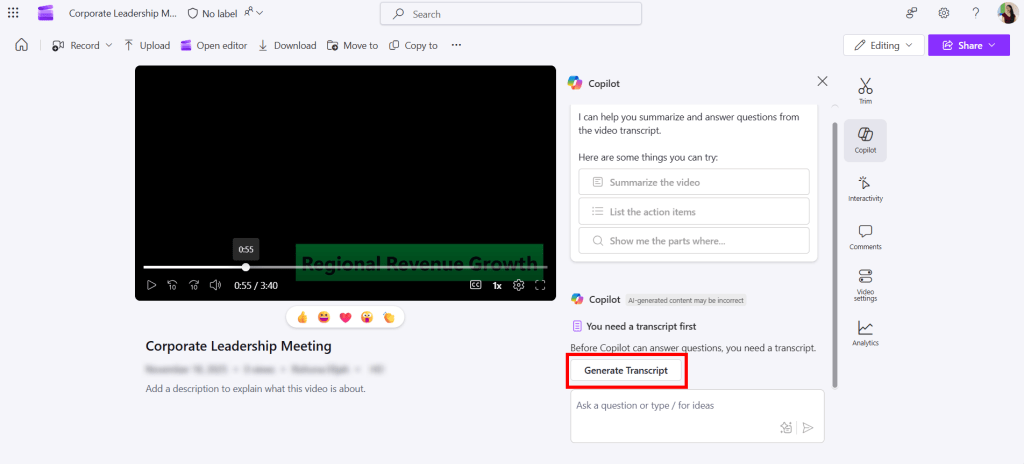
Clipchamp will create a written transcript from the spoken audio in the video. Copilot can then use that transcript to summarise the recording and answer your questions. For example, you could ask Copilot to:
- Summarise the video
- List the action items
- Identify the key decisions
- Explain the main topics discussed
- Find the part where a particular subject was mentioned
- Create a list of follow up questions
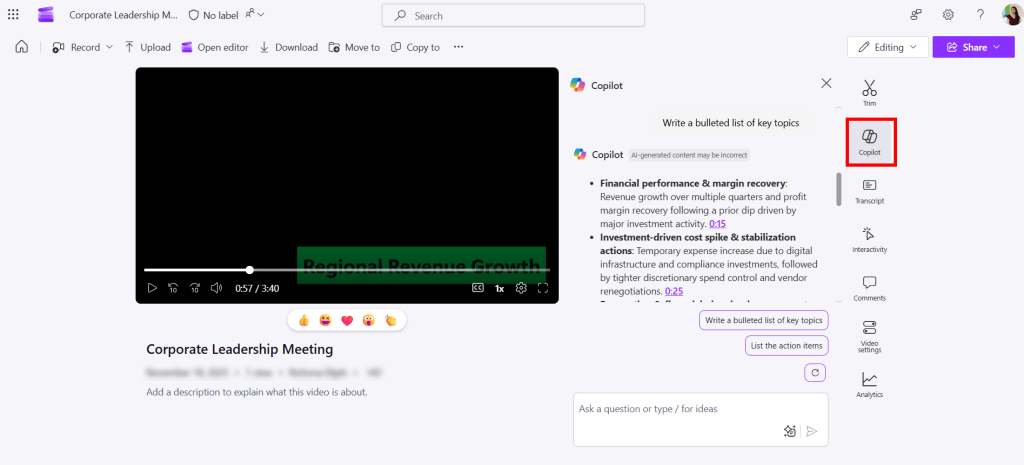
You need to ask these questions from the Copilot pane within Clipchamp while the video is open. Uploading the video to Clipchamp does not make the video directly available as a file that you can attach to a regular Microsoft 365 Copilot chat. However, you could download a copy of the transcript and upload it directly to M355 Copilot chat instead.
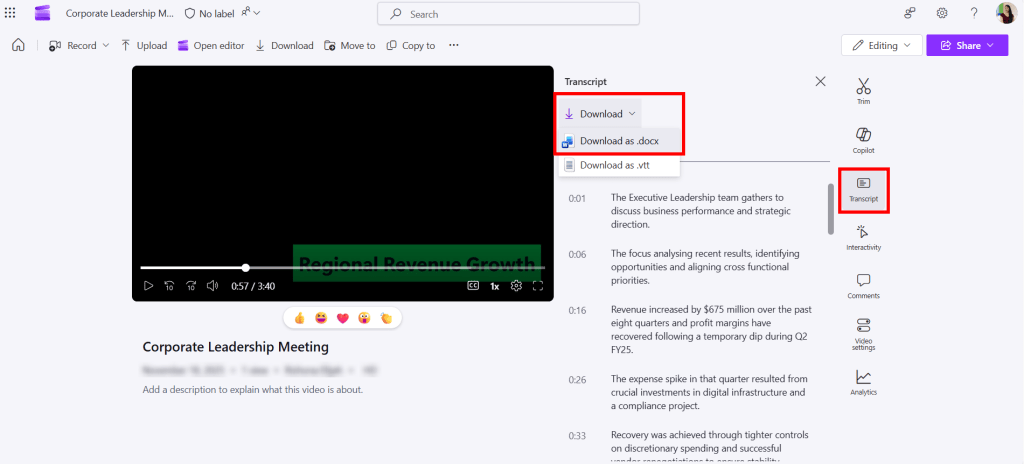
Copilot is not examining visual elements shown in the recording. The answers are based on the generated transcript.


