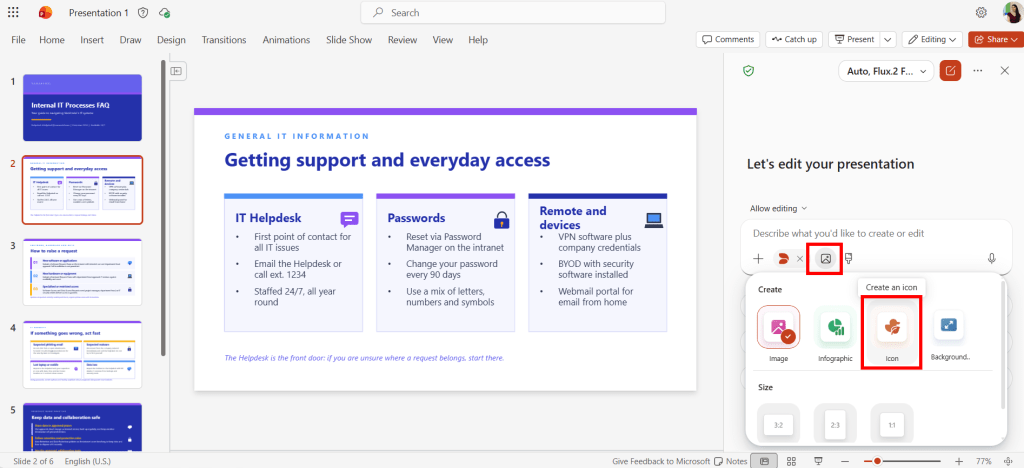

In Copilot in PowerPoint, switch to Edit mode and use a prompt like this to generate yourself a set of icons:
Create a variety of 20 different business-themed icons with a transparent background. Make them filled icons using a combination of colours [add in your colour codes]. It should be able to stand out when put on a [colour, e.g. white] background. Place all icons on a single slide as a collection.

Alternatively, ask it to “stick to the colours in the current presentation only”.
Copilot generates an entire collection of icons that you can use throughout your presentation.
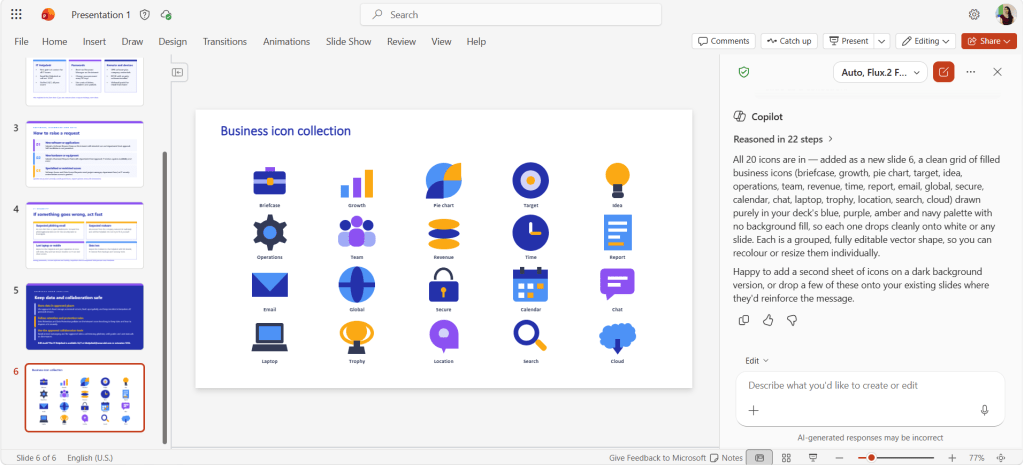
Tip: You can also ask Copilot to use the icons throughout the presentation. Run a prompt such as “Add icons throughout this presentation where suitable, using the icons on slide .”

Transparent background
If the background of the icons is not transparent, switch to an image generation model such as MAI Image 2.5 Flash, Flux.2 Flex, GPT-Image-2 or higher.
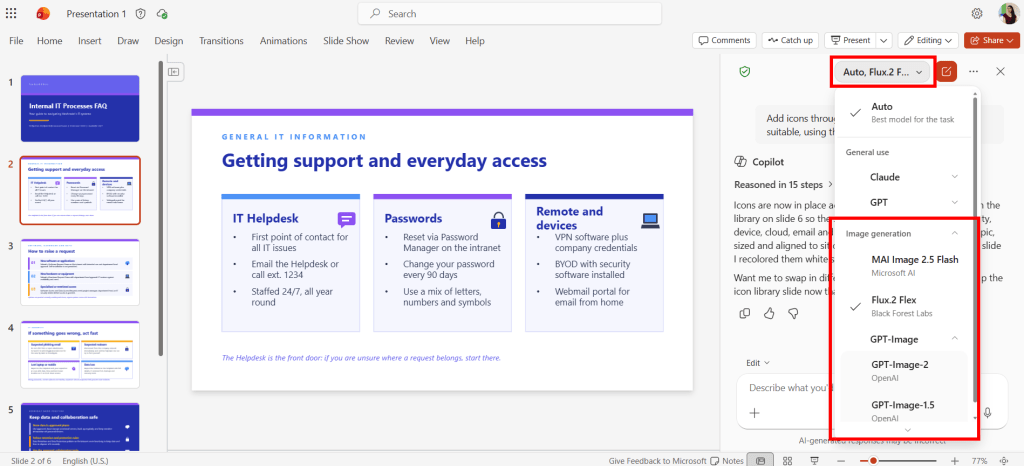
I’ve had good results with Flux.2 Flex. It can generate the icons as PowerPoint shapes rather than just images. That gives you more flexibility to recolour, edit and customise the icons after they’ve been created.
Try with Designer
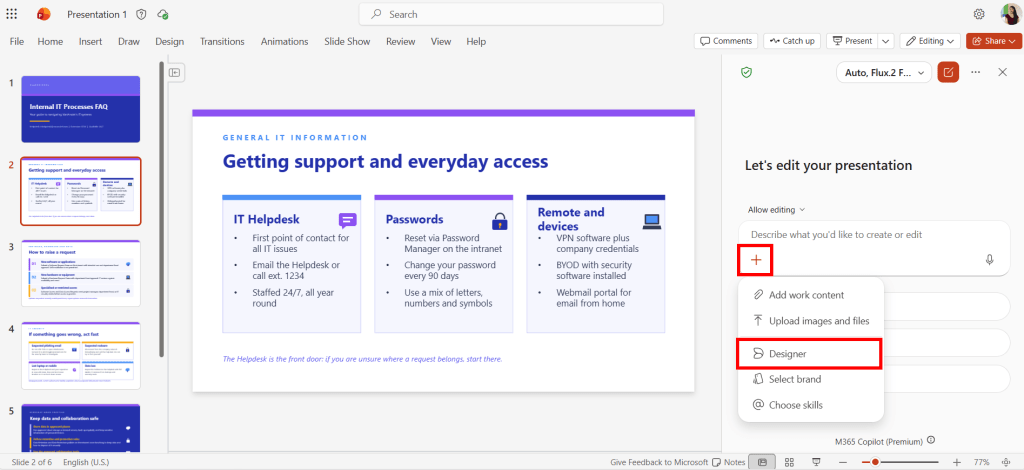
Microsoft is also introducing additional Designer capabilities that allow you to choose a visual style before generating images and icons. While in Edit mode, select the + button then Designer.
Select the Icon option and choose a style.